



Batch
Turn a CSV into a ZIP of styled QR codes with amvero's batch generator.
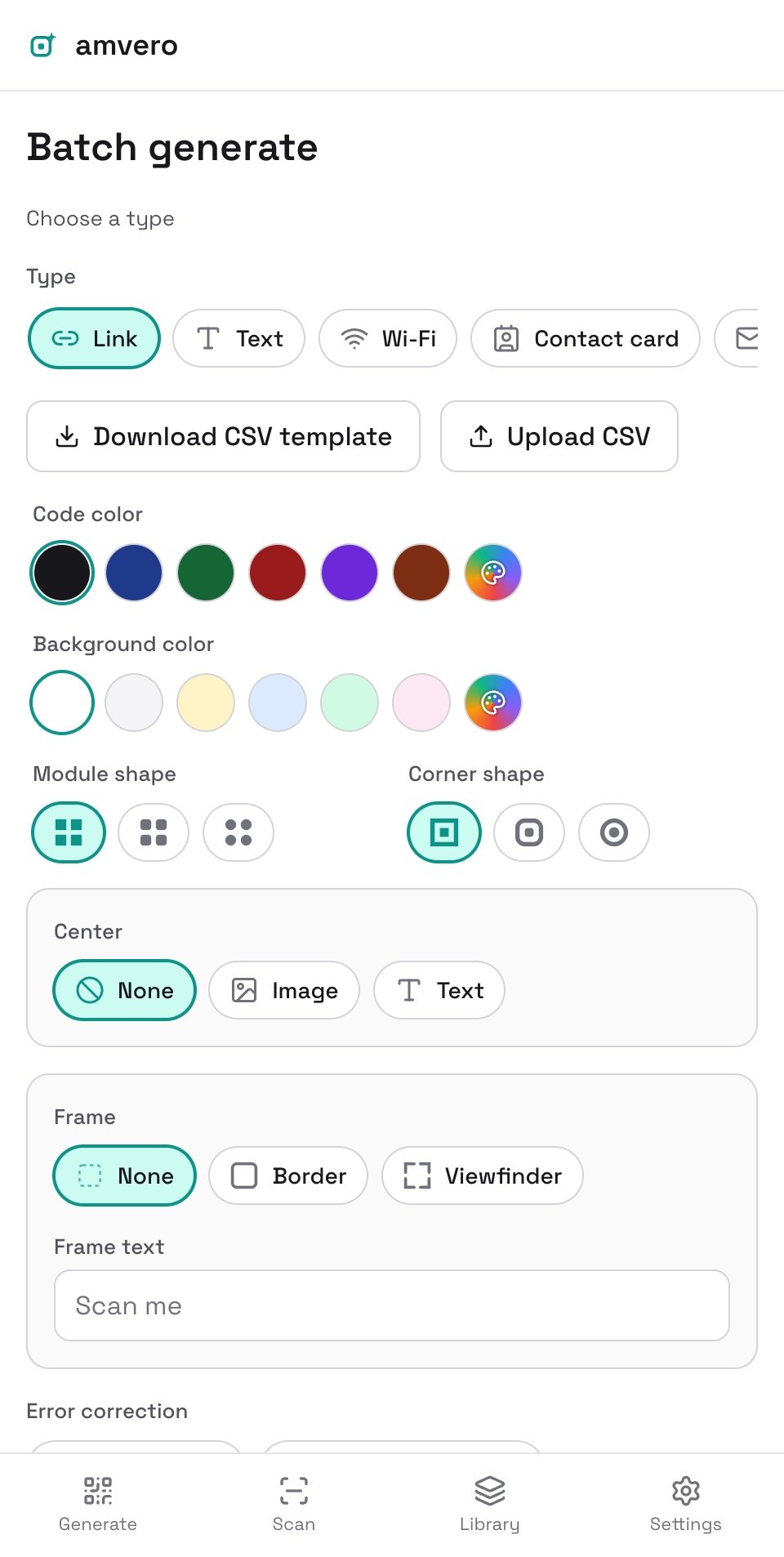
amvero’s Batch screen generates many QR codes in one step: choose a type, upload a CSV with one row per code, and download a ZIP of styled images.
In this guide: Download the CSV template, fill it in, and generate a batch of codes.
Before you begin: Open amvero and tap Batch in the bottom navigation.
Download the CSV template
- On the Batch screen, choose a type — for example Link.
- Tap Download CSV template. The template has one column per field the type needs.
Fill in the template
Open the CSV in any spreadsheet app and add one row per QR code. Save it as a CSV file when you’re done.
Generate the ZIP
- Tap Upload CSV and choose your file.
- amvero validates each row and shows how many are valid and how many will be skipped — rows with missing or invalid fields are skipped.
- Pick a style and an export format (PNG or SVG) — the same styling is applied to every code in the batch.
- Tap Generate ZIP to download a ZIP with all the codes.
Related guides
- Generate — the fields each QR type needs
- Style — how styling applies to the batch
- Library — save single codes instead
Frequently asked questions
My CSV was rejected
The CSV must contain the required columns for the chosen type. Download the template again to see the exact column names, and make sure your file has them all.
Rows were skipped
Rows with missing or invalid fields are skipped. amvero shows how many rows were valid and how many were skipped after you upload the CSV — fix the invalid rows and upload again.
Can I use different styles within one batch?
No. One batch applies a single style to every code. Generate separate batches for different styles.
Need more help?
If you run into something this guide doesn’t cover, reach out through the Contact page.