



Generate
The QR types you can create with amvero, from links to Wi-Fi and contact cards.
amvero can generate QR codes for a wide range of uses. Each type has its own set of fields — fill them in and the code updates live.
In this guide: The types you can generate and how to fill in each one.
Before you begin: Open amvero on the Generate screen. See Getting Started if you haven’t yet.
Choose a type
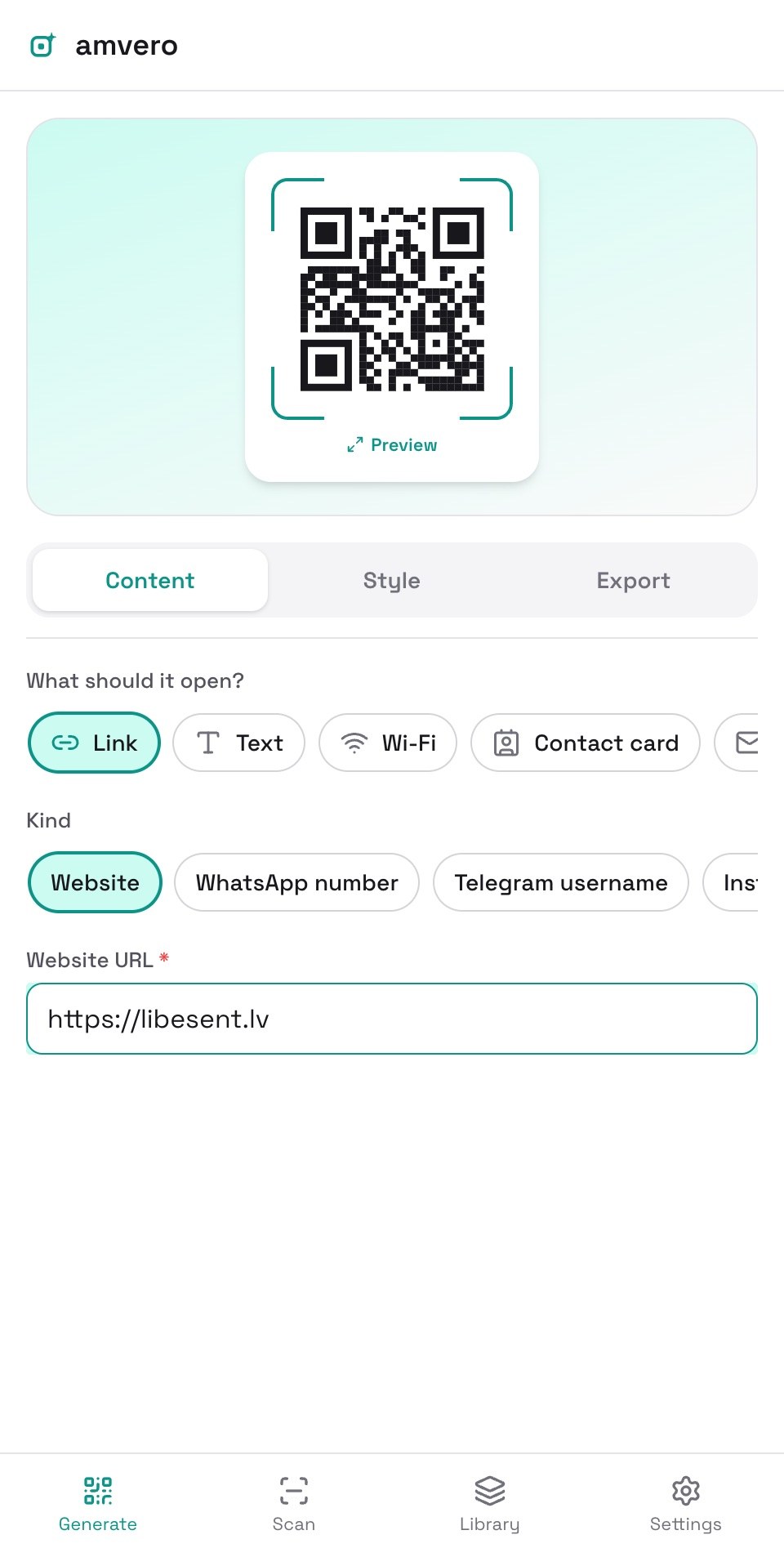
At the top of the Generate screen, pick a type from the row of buttons. The available types are:
- Link — a website URL or a social profile (WhatsApp, Telegram, Instagram, X/Twitter, Facebook, TikTok).
- Text — any plain text or note.
- Wi-Fi — network name, password, encryption, and whether it’s hidden.
- Contact card — a vCard with name, job title, organization, phone, email, website, address, and note.
- Email — recipient, subject, and message.
- SMS — phone number and message.
- Phone — a single phone number to call.
- Location — a geographic point, found by address search or your current location.
- Calendar event — title, start, end, and location.
Fill in the fields
Each type shows only the fields it needs. Required fields are marked, and the live preview appears once the code is valid. A message reminds you when required fields are still empty.
Export or save
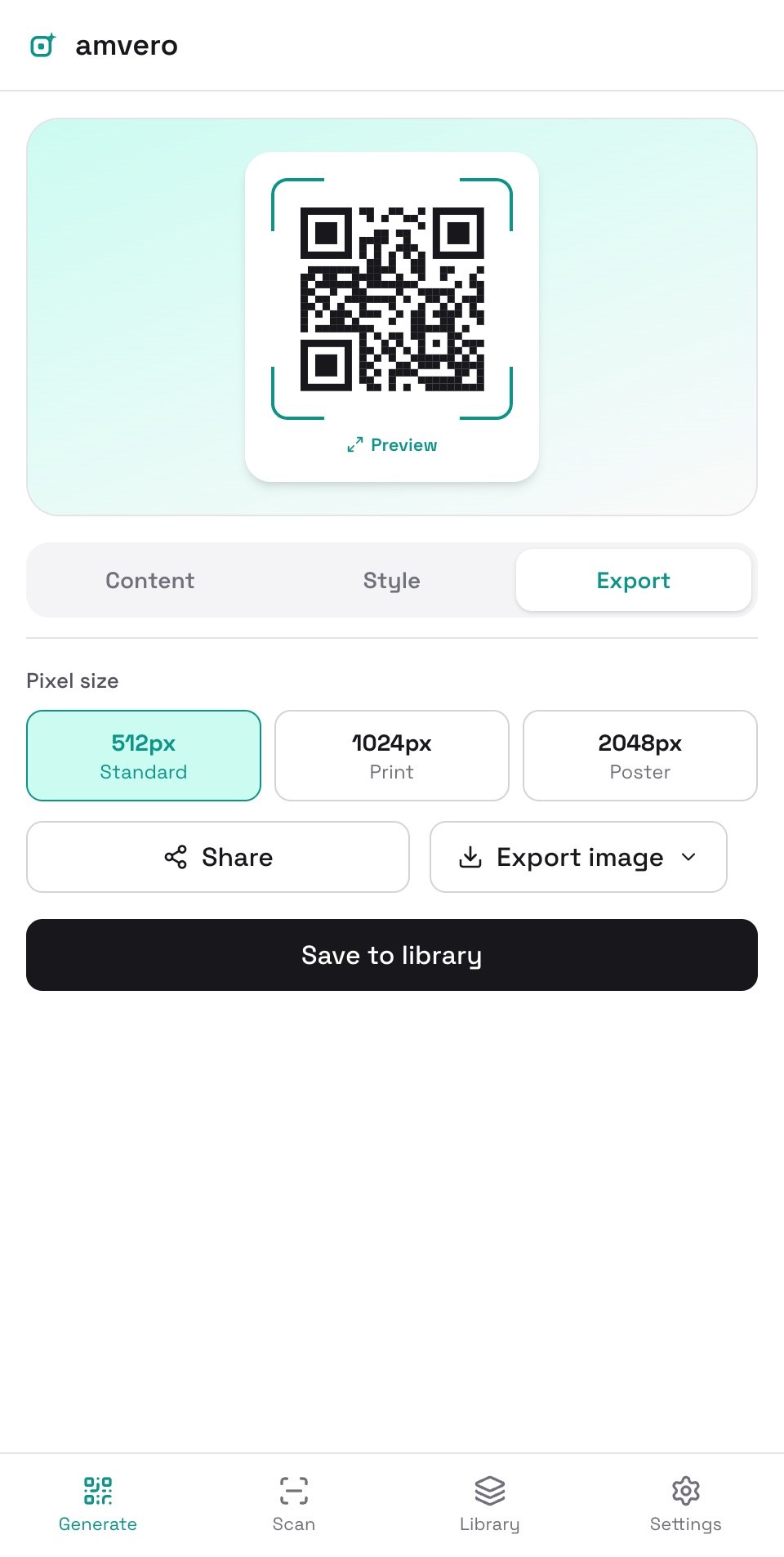
When you’re happy with the code, open the Export tab. From there you can:
- Export image — download the QR code as PNG, JPG, or SVG. Pick a Pixel size first — 512px (Standard), 1024px (Print), or 2048px (Poster).
- Share — send the code as an image through your device’s share sheet. The button appears only on devices that support sharing.
- Save to library — keep it for later (see Library).
Related guides
- Style — customize the look of your code
- Library — save, search, and export your codes
- Batch — generate many codes at once from a CSV
Frequently asked questions
Can I edit a saved code? Yes. Open the code from your library and tap Edit. Make your changes and save them — the library entry updates. See Library.
What does the preview show? A live QR code that updates as you type. If the code is invalid, you’ll see a reminder that required fields are still empty.
Need more help?
If you run into something this guide doesn’t cover, reach out through the Contact page.