



Getting Started
Open amvero, create your first QR code, and save it to your library.
Getting started with amvero takes just a minute. There’s nothing to install, sign up for, or pay for — you just open it in a browser and start generating.
In this guide: Open amvero, create your first QR code, and save it to your library.
Before you begin: amvero works in any modern browser. No account is needed, and nothing you make requires an internet connection.
Open amvero
Open amvero.libesent.lv in your browser. You’ll land on the Generate screen — everything you need is right there.
Create your first QR code
- Choose a type from the row of buttons — for example Link.
- For a link, pick a Kind (Website, WhatsApp, Telegram, Instagram, and more) and enter the URL or handle.
- As you type, a live preview of your QR code appears at the top of the screen.
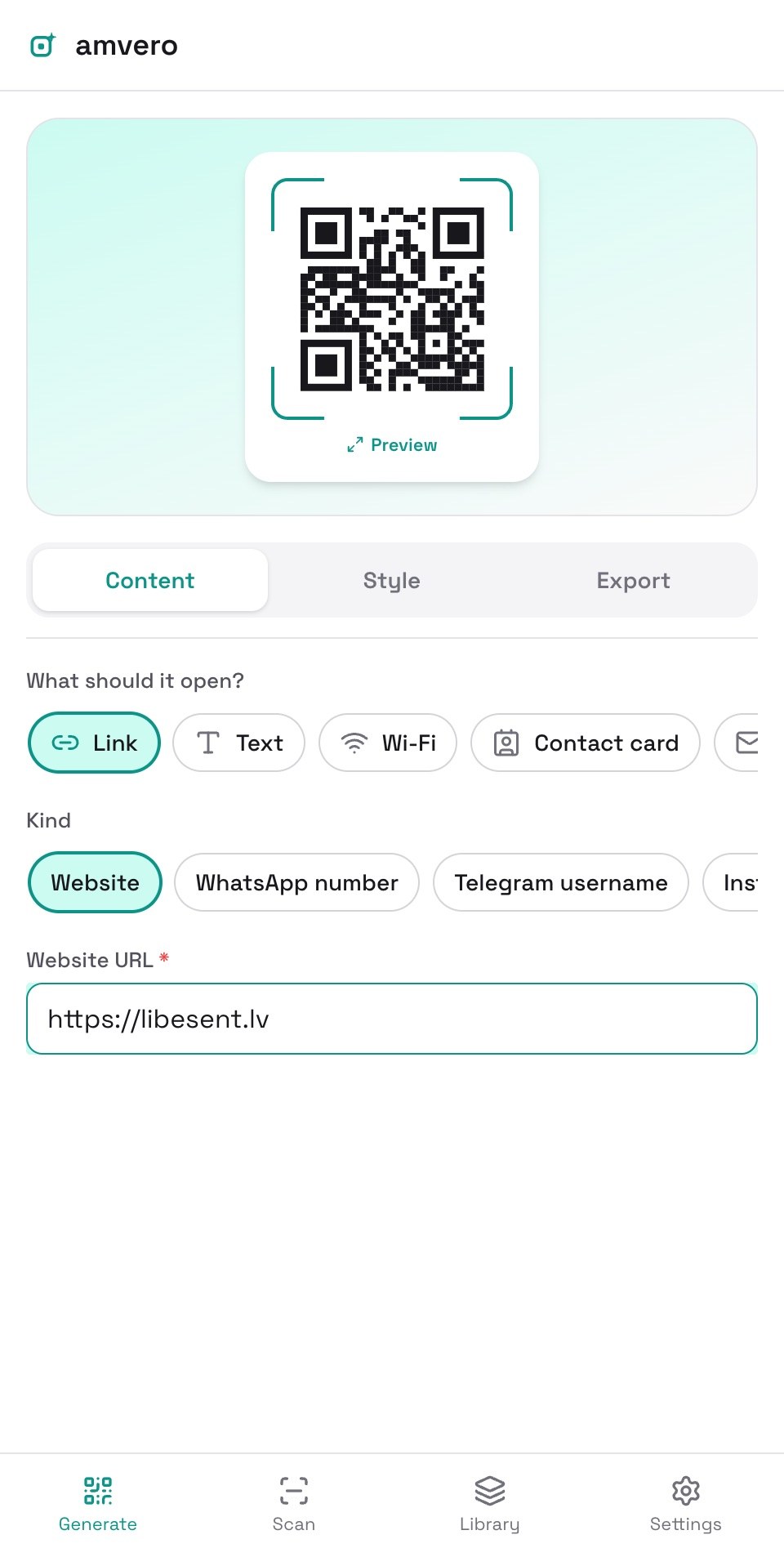
- Open the Style tab to adjust colors and shapes, or the Export tab when you’re ready to download.
Save to your library
Your library keeps every code you save, so you can reuse it later.
- Open the Export tab.
- Tap Save to library.
- Find it any time on the Library screen — see Library for searching, filtering, and exporting.
Next steps
- Generate — the full range of QR types.
- Style — colors, shapes, center overlays, and frames.
- Scan — read codes with your camera or from an image.
- Batch — generate many codes from a CSV.
Frequently asked questions
Do I need an account? No. amvero has no accounts and no sign-in. Everything you create stays on your device.
Does it work offline? Yes. amvero runs entirely in your browser, so it works even without an internet connection.
Is anything uploaded to a server? No. There’s no backend — generation, scanning, and storage all happen on your device.
Need more help?
If you run into something this guide doesn’t cover, reach out through the Contact page.