



Library
Search, filter, duplicate, and export the QR codes you've saved in amvero.
Your library holds every QR code you’ve saved. It lives entirely on your device — nothing is uploaded anywhere.
In this guide: Find, manage, and back up your saved codes.
Before you begin: Save a code from the Export tab (see Getting Started) so you have something in your library.
Your library
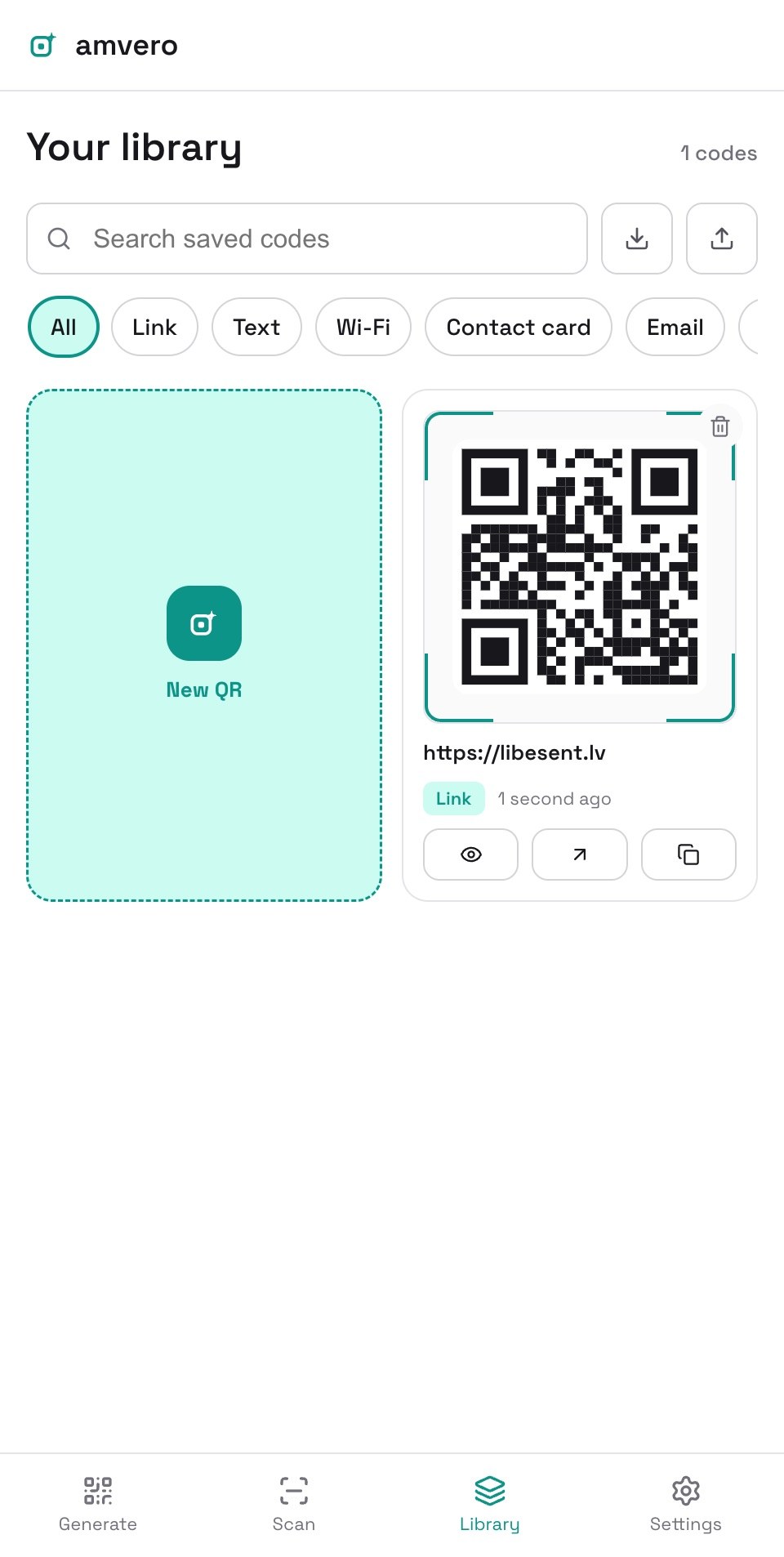
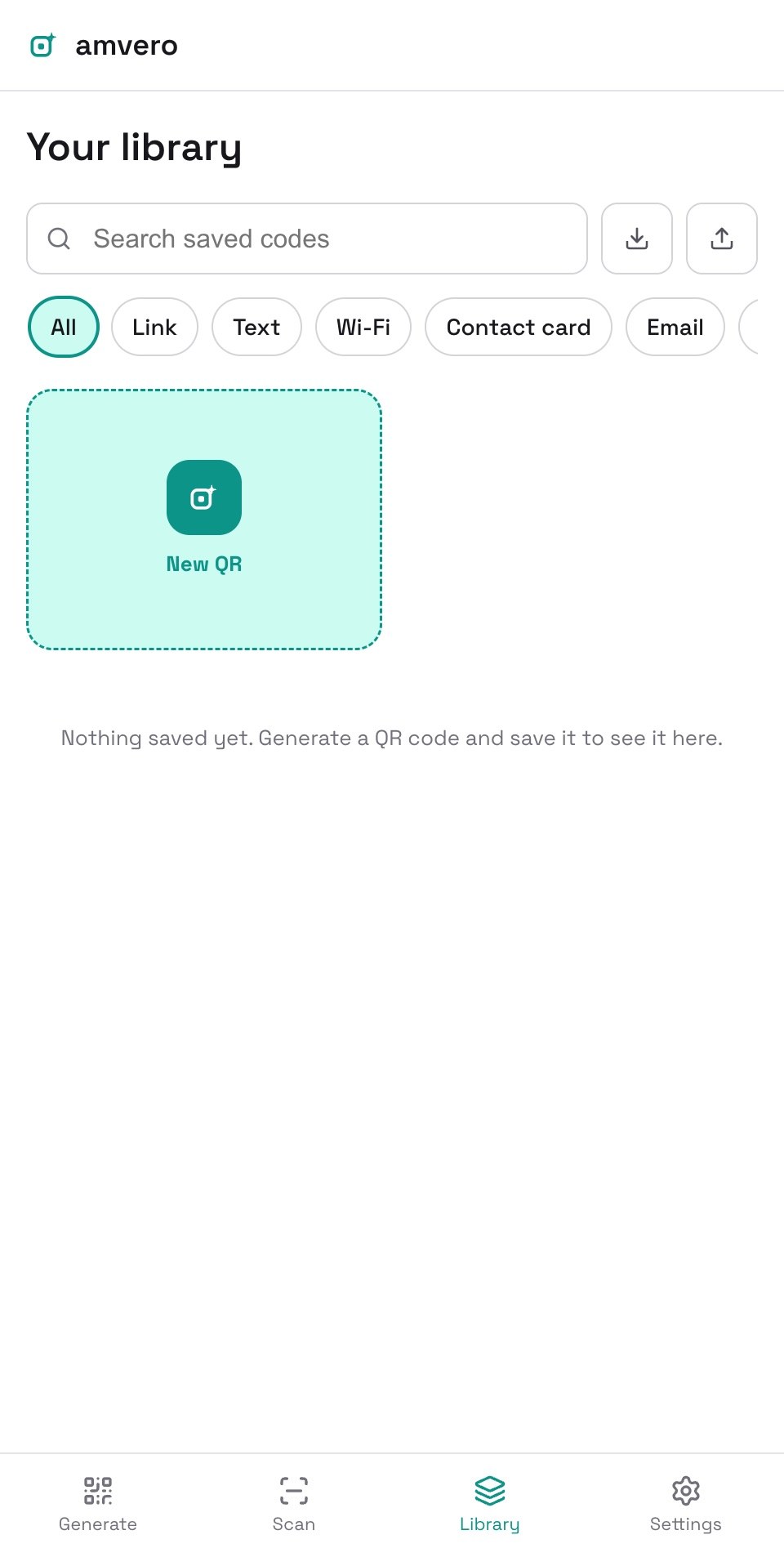
Open the Library screen from the bottom navigation. Every saved code is listed here with its type and a preview.
Find a code
- Search — type to filter by the code’s label or its content.
- Filter by type — narrow the list to one QR type (Link, Wi-Fi, Contact card, and so on).
Manage a code
Each saved code shows its label, type, and when it was created. From the list you can:
- View (eye icon) — preview a larger version of the code.
- Open (arrow icon) — go to the code’s detail page, where you can export the image or edit the code.
- Duplicate — make a separate copy you can edit independently.
- Delete — remove it from your device. amvero asks you to confirm first, and this cannot be undone.
The detail page shows the code with its type and label, and offers the same export actions. Tap Edit to open the code in the generate screen — saving there updates the library entry. Deleting from the detail page also asks you to confirm first.
Export and back up
Your library stays on your device, so it’s a good idea to back it up:
- Export library (JSON) — download a JSON backup of all your codes.
- Import library (JSON) — restore codes from a JSON file you exported before.
Related guides
- Getting Started — create and save your first code
- Scan — add scanned codes to your library
- Batch — generate many codes at once
Frequently asked questions
Where is my library stored?
Only on your device. There’s no server, so your codes never leave it.
Will I lose my codes if I clear my browser data?
Yes — like any on-device data, your library can be removed if you clear your browser’s site data. Export a JSON backup regularly if that matters to you.
Can I share my library with someone?
Your library is private to your device. To move codes between devices, export a JSON backup on one device and import it on the other.
Need more help?
If you run into something this guide doesn’t cover, reach out through the Contact page.