



Scan
Read QR codes with your camera or from an uploaded image.
amvero can read QR codes two ways: with your device’s camera, or from an image you upload.
In this guide: Scan a QR code with your camera, scan from an image, and use the result.
Before you begin: Open amvero and tap Scan in the bottom navigation.
Scan with your camera
- On the Scan screen, tap Enable camera.
- Point your camera at a QR code. Scanning happens automatically — no button to press.
- The result appears, and you can open a link or add the code to your library.
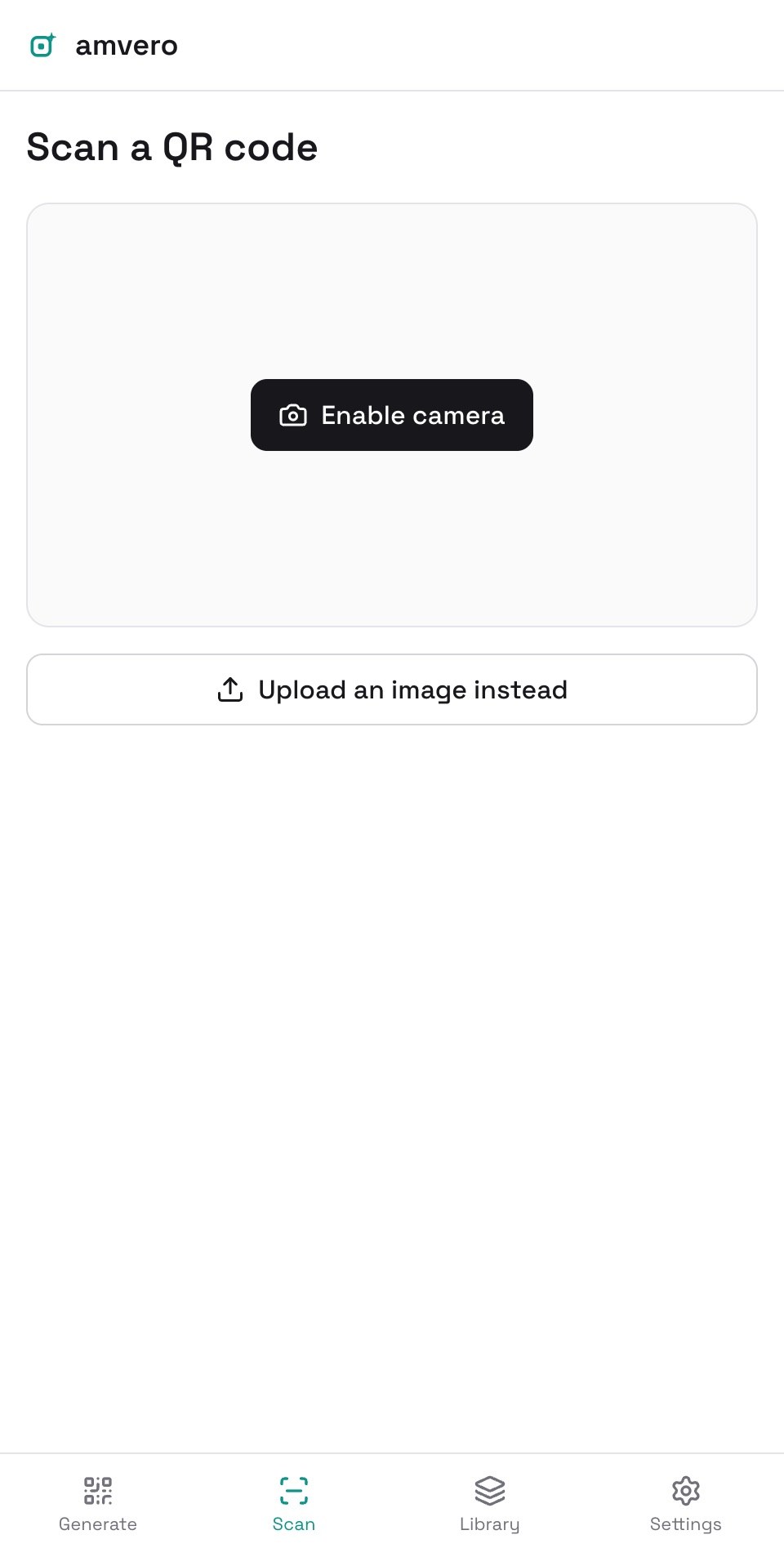
If camera access is denied, or the device has no camera, you can still scan by uploading an image instead.
Scan from an image
On the Scan screen, tap Upload an image instead and choose a photo that contains a QR code. amvero reads the code and shows the result.
Use the result
After a scan you can:
- Open link — appears when the result contains something openable (a link, email, SMS, phone number, or location), and opens it.
- Copy — copy the scanned text to the clipboard.
- Add to library — save the code to your library for later (see Library).
- Scan another — go back and scan another code.
Related guides
Frequently asked questions
Do I need to press anything to scan? No. Once the camera is on, amvero scans continuously — just point it at a code.
Can I scan from a screenshot? Yes. Use Upload an image instead and choose the screenshot.
The image didn’t contain a code — what now? amvero tells you when no QR code was found. Try a clearer, larger photo with the code fully in frame.
Need more help?
If you run into something this guide doesn’t cover, reach out through the Contact page.