

Style
Colors, shapes, center overlays, frames, and error correction for your QR codes.
The Style tab in amvero gives you full control over how your QR code looks — from colors and shapes to a logo or text in the center, frames, and error correction.
In this guide: Adjust colors, shapes, center overlays, frames, and error correction, and keep your code scannable.
Before you begin: Open the Style tab on the Generate screen. See Getting Started if you haven’t yet.
Colors
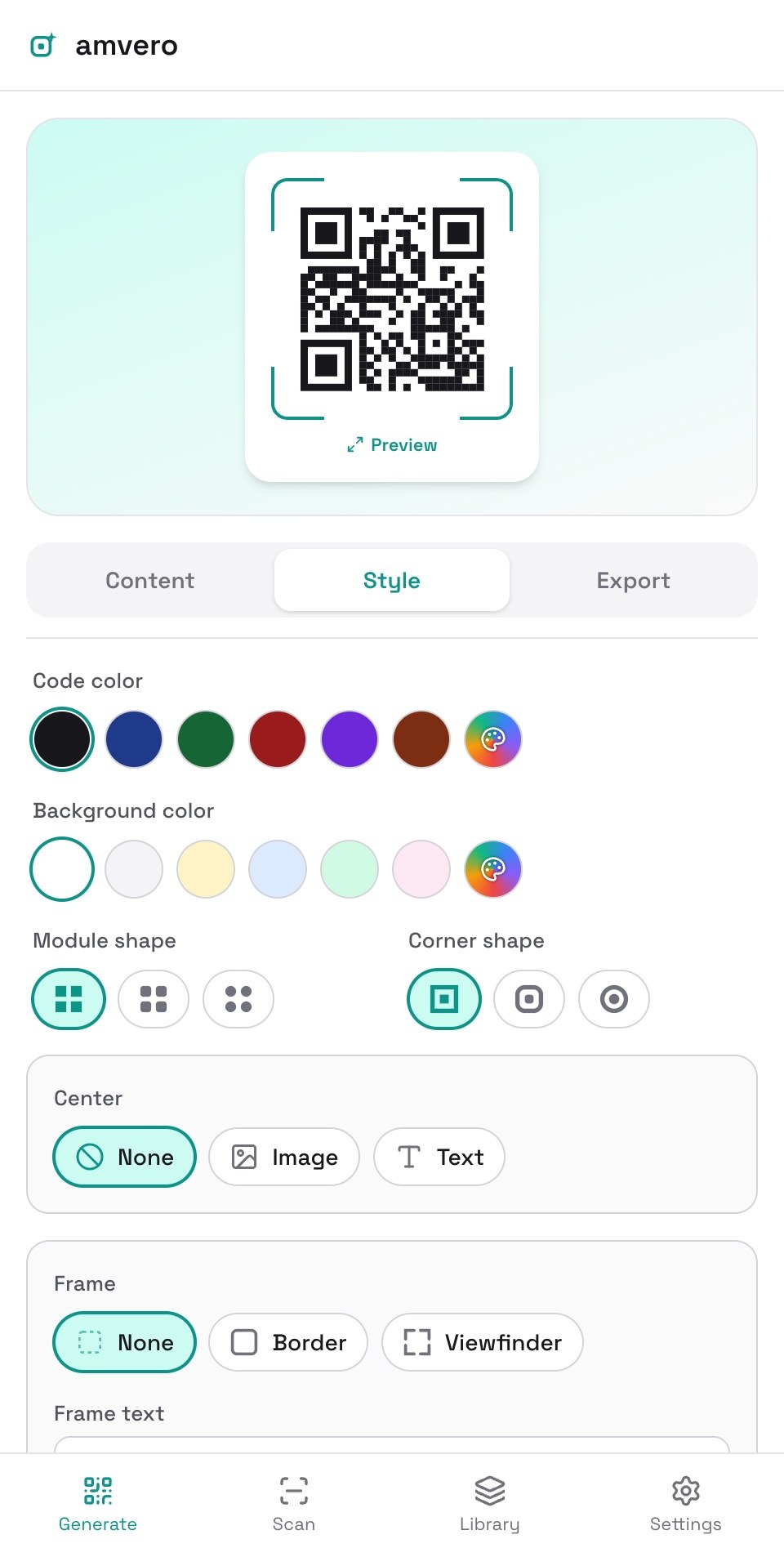
Pick a Code color and a Background color from the presets or choose your own. If two colors are too close in contrast, amvero warns you that the code may not scan reliably.
Shapes
- Module shape — the individual dots: Square, Rounded, or Dots.
- Corner shape — the three finder patterns: Square, Rounded, or Circle.
Center overlay
Add an image or text to the center of your code:
- Image — upload a photo, choose an aspect ratio (Square, Classic, Photo, Widescreen, or Custom), crop it, and adjust its size.
- Text — type up to a short label, like your initials.
amvero keeps the overlay within safe limits and warns you if the error correction level is too low or the overlay is too large to scan reliably. You can add a background behind an image overlay for readability.
Frame
Add a border or viewfinder frame around the code and type a caption (like “Scan me”) into the frame.
Error correction
Choose how much damage the code tolerates before it stops scanning: low (7%), medium (15%), quartile (25%), or high (30%). Higher levels make the pattern denser but let the code still scan when it’s partly damaged, dirty, or covered by a center overlay.
Related guides
Frequently asked questions
Will a stylized code still scan?
amvero shows warnings when colors lack contrast, the error correction is too low for a center overlay, or the overlay is oversized. Heed them, and test-scan the final code before printing in bulk.
Can I remove the center overlay later?
Yes. Open the code in the Style tab, set the Center control to None, and the overlay is removed.
Need more help?
If you run into something this guide doesn’t cover, reach out through the Contact page.