

Apps
Open the apps connected to your Knit account from one place.
The Apps tab collects the apps you can open with your Knit account. Instead of finding each app’s address and signing in separately, you open them from one list.
In this guide: Find your apps and open them.
Before you begin: Sign in to Knit. The Apps tab appears in the bottom bar only when at least one app is available to you.
Your apps
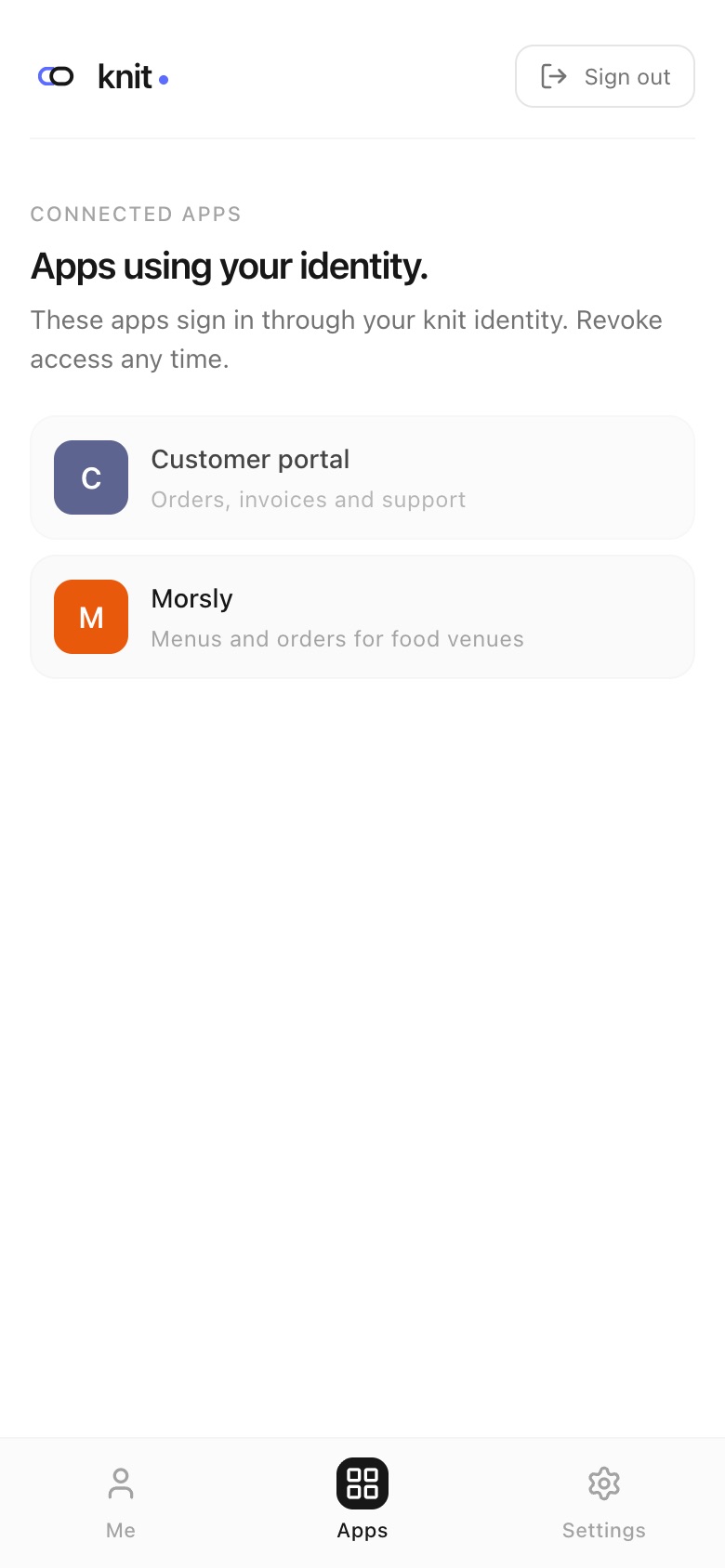
Tap Apps in the bottom bar. Each app appears as a card with its name, icon, and a short description.
Open an app
Tap an app’s card. It opens in a new tab and signs you in with your Knit account. Because you’re already signed in to Knit, there’s usually nothing more to enter.
Which apps you see
The list depends on your account. Some apps are available to everyone, while others appear only for certain groups of users or in certain countries. If you expect an app that isn’t listed, ask the people who run that app.
Related guides
- Getting Started — sign in to Knit.
- QR Sign-in & New Devices — open your apps on a computer by signing in with your phone.
Frequently asked questions
Why don’t I see the Apps tab? No apps are available to your account yet. The tab appears automatically once one is.
Do I need a separate account for each app? No. Apps that work with Knit use your Knit account, so you sign in to all of them the same way.
Need more help?
If you run into something this guide doesn’t cover, reach out through the Contact page.