



Getting Started
Create your Knit account with a passkey and sign in for the first time.
Creating a Knit account takes less than a minute. You don’t choose a password — your device creates a passkey and unlocks it with your fingerprint, face scan, or screen lock PIN.
In this guide: Create your account, sign in, and find your way around.
Before you begin: Use a phone, tablet, or computer with a screen lock (fingerprint, face, or PIN) and an up-to-date browser. Open Knit in your regular browser, not inside another app such as Telegram or Instagram — passkeys can’t be created there.
Open Knit
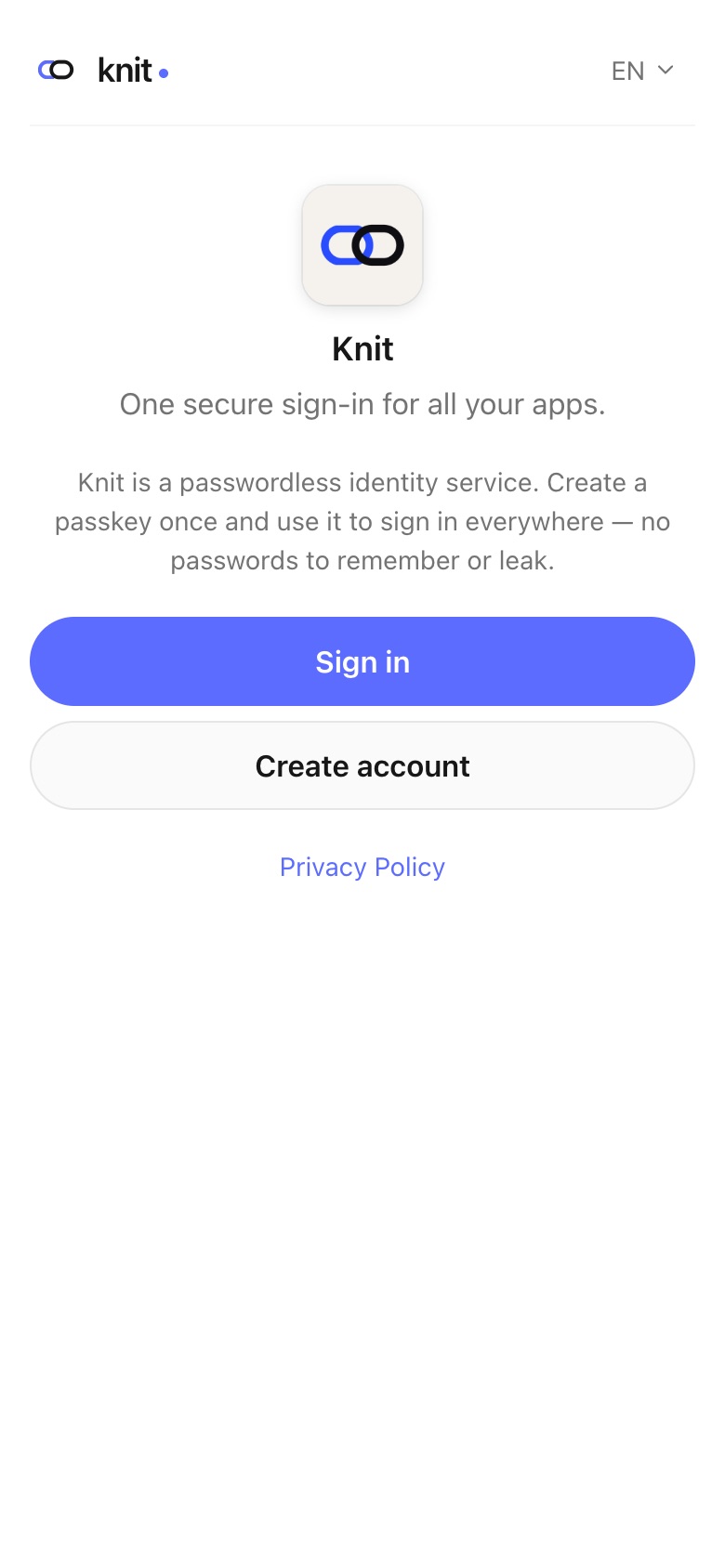
You usually arrive at Knit from an app that uses it for sign-in. You can also open Knit directly. The start page has two buttons: Sign in and Create account.
Create your account
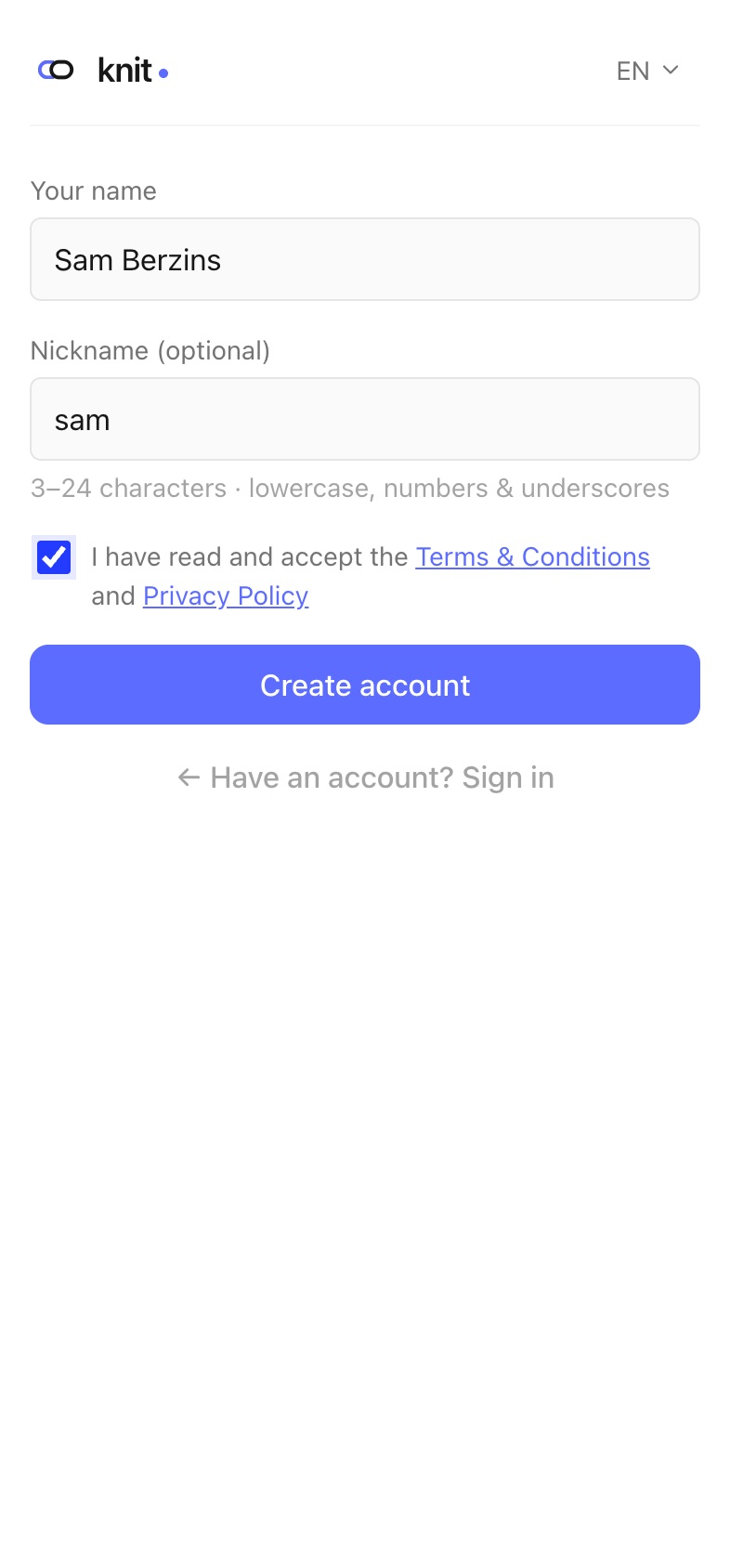
- Tap Create account.
- Enter Your name. This is how apps and other people see you.
- Optionally, pick a Nickname — 3 to 24 characters, starting with a letter, using lowercase letters, numbers, and underscores. It becomes your @handle. You can add or change it later in Settings.
- Tick the box to accept the Terms & Conditions and Privacy Policy.
- Complete the short security check below the form. Usually it finishes by itself in a moment.
- Tap Create account.
- Your device asks for your fingerprint, face, or PIN. Confirm it — this creates your passkey.
You’re now signed in. If an app sent you to Knit, you’re taken back to it; otherwise you land on your account page.
Your account page
The Me tab shows who you’re signed in as and how you sign in:
- Your name, your @handle, and the month you joined. The copy button next to them copies your @handle.
- Scan to approve — use it to let another device sign in to your account. See QR Sign-in & New Devices.
- Sign-in methods — your passkeys and any connected social accounts. The one you used this time is marked Active. Tap Manage sign-in methods to change them.
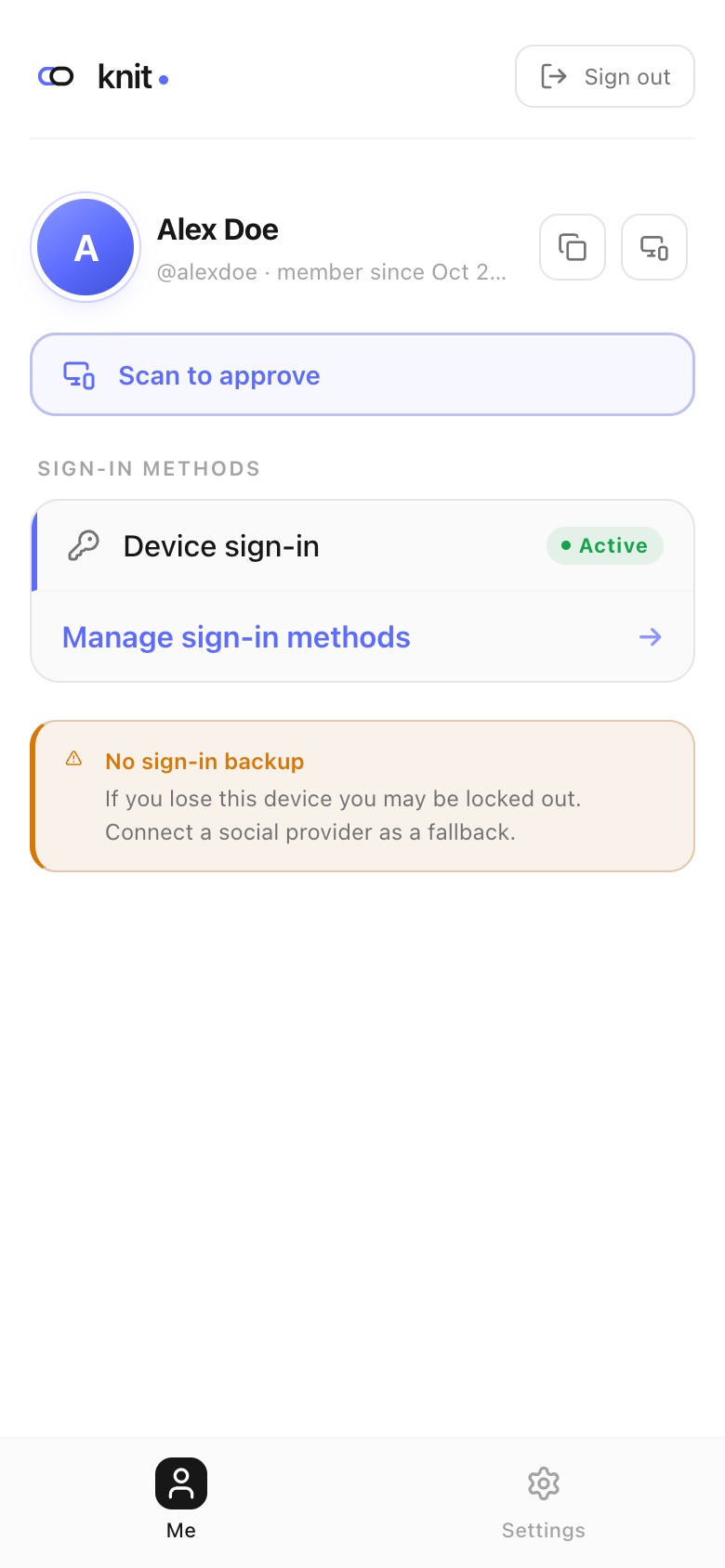
If you see No sign-in backup, your passkey is your only way in. Connect a social account as a fallback — see Account Recovery.
The bottom bar switches between Me, Apps (shown once you have apps to open), and Settings. Sign out is at the top right.
Sign in next time
- Open Knit and tap Sign in.
- Your device asks for your fingerprint, face, or PIN.
- Confirm it and you’re in.
If your device offers more than one passkey, choose the one for Knit.
Next steps
- Passkeys — what a passkey is and how to manage yours.
- Social Login — connect Google, Apple, or another account as a backup.
- QR Sign-in & New Devices — sign in on a computer using your phone.
Frequently asked questions
Do I need a password? No. Knit has no passwords. You sign in with a passkey, a connected social account, or a QR code approved from your phone.
What if I see “Passkeys are not supported on this device or browser”? Update your browser, or try another device. You can still sign in with a connected social account, or by QR code from a device that has your passkey.
I see “Open in your browser”. What do I do? You opened Knit inside another app’s built-in browser. Tap the menu (⋯), choose “Open in browser”, and continue there.
Can I sign up without giving a nickname? Yes. The nickname is optional, and you can add one later in Settings.
Need more help?
If you run into something this guide doesn’t cover, reach out through the Contact page.