



Passkeys
How Knit passkeys work, and how to rename or remove them.
A passkey is how Knit knows it’s you. It’s stored on your device and unlocked with the same fingerprint, face scan, or PIN you use to unlock the device itself.
In this guide: Understand passkeys, and manage the ones on your account.
Before you begin: Create your account first — see Getting Started.
How passkeys work
When you create an account or add a device, your device makes a passkey and gives Knit only the part needed to recognise it. Each time you sign in, your device asks for your fingerprint, face, or PIN and then proves to Knit that it holds the passkey.
This means:
- There’s no password that can be guessed, reused, or leaked.
- Your fingerprint or face never leaves your device — Knit never sees it.
- A passkey works only on Knit’s own website, so a fake look-alike site can’t use it.
Some devices keep passkeys in a password manager, such as iCloud Keychain or Google Password Manager, and sync them to your other devices signed in to the same account.
See your passkeys
- On the Me tab, tap Manage sign-in methods.
- Your passkeys are listed at the top, each with its name and the date it was added.
The passkey you’re signed in with is marked This device.
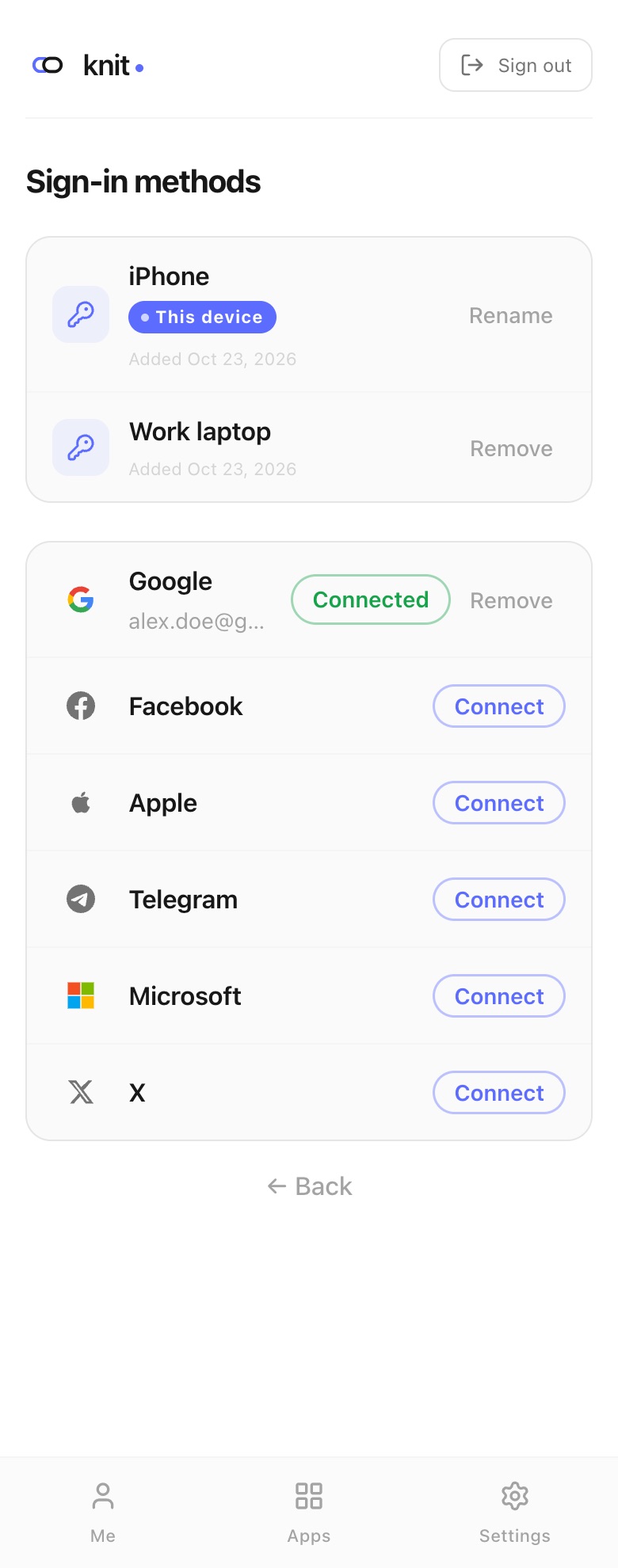
Rename a passkey
New passkeys are called “Device sign-in” unless you give them a name. A clear name like “iPhone” or “Work laptop” helps you recognise them later.
- Open Sign-in methods on the device whose passkey you want to rename.
- Next to the passkey marked This device, tap Rename.
- Type a new name and tap Save.
You can rename only the passkey you’re currently signed in with, and each name must be unique on your account.
Remove a passkey
Remove a passkey when you stop using a device, or if it’s lost.
- Open Sign-in methods.
- Next to the passkey, tap Remove, then confirm.
A few things to know:
- You can’t remove the passkey you’re signed in with. Remove it from another device, or while signed in with a social account.
- You must keep at least one sign-in method on your account.
- For your safety, Knit may first show Verify your identity. Tap Verify and confirm with your passkey to continue.
Add a passkey on another device
To use a passkey on a second device, add it from that device — see Add a new device.
Related guides
- QR Sign-in & New Devices — sign in on a device without your passkey, or add one to it.
- Account Recovery — keep a backup in case you lose a device.
- Social Login — connect a social account as a second way in.
Frequently asked questions
Is my fingerprint or face sent to Knit? No. Your device checks it locally and only tells Knit that the check passed.
My device shows several passkeys. Which one is Knit’s? Choose the one labelled with Knit’s website address. Passkeys for other websites won’t work on Knit.
I see “This passkey is no longer linked to any account”. What happened? The account that passkey belonged to was deleted. Create a new account, or sign in with a different passkey.
Why can’t I remove a passkey? Either it’s the one you’re signed in with, or it’s your last sign-in method. Sign in another way first, or connect another method before removing it.
Need more help?
If you run into something this guide doesn’t cover, reach out through the Contact page.