



QR Sign-in & New Devices
Sign in on another device by scanning a QR code with your phone, or add a passkey to a new device.
Your passkey lives on your phone, but sometimes you need to sign in on a computer, tablet, or shared screen. Knit lets you approve that device from your phone by scanning a QR code — nothing to type on the other device.
In this guide: Sign in on another device with a QR code, approve requests from your phone, and add a passkey to a new device.
Before you begin: Keep your phone (or another device) where you’re signed in to Knit with a passkey close at hand. Approving needs a passkey sign-in — a social sign-in can’t approve devices.
Two ways to use a QR code
| Sign in with QR code | Add a new device | |
|---|---|---|
| Use it for | A quick sign-in on a device you don’t use often | A device you’ll keep using |
| Start on the new device from | The sign-in page | Sign-in methods → + Add this device |
| Result | Temporary access — no passkey is saved | A passkey is saved on the new device |
Sign in with a QR code
On the device you want to sign in to:
- Open Knit’s sign-in page and tap Sign in with QR code.
- Wait a moment while Knit prepares your code. A QR code appears, with an 8-character code underneath.
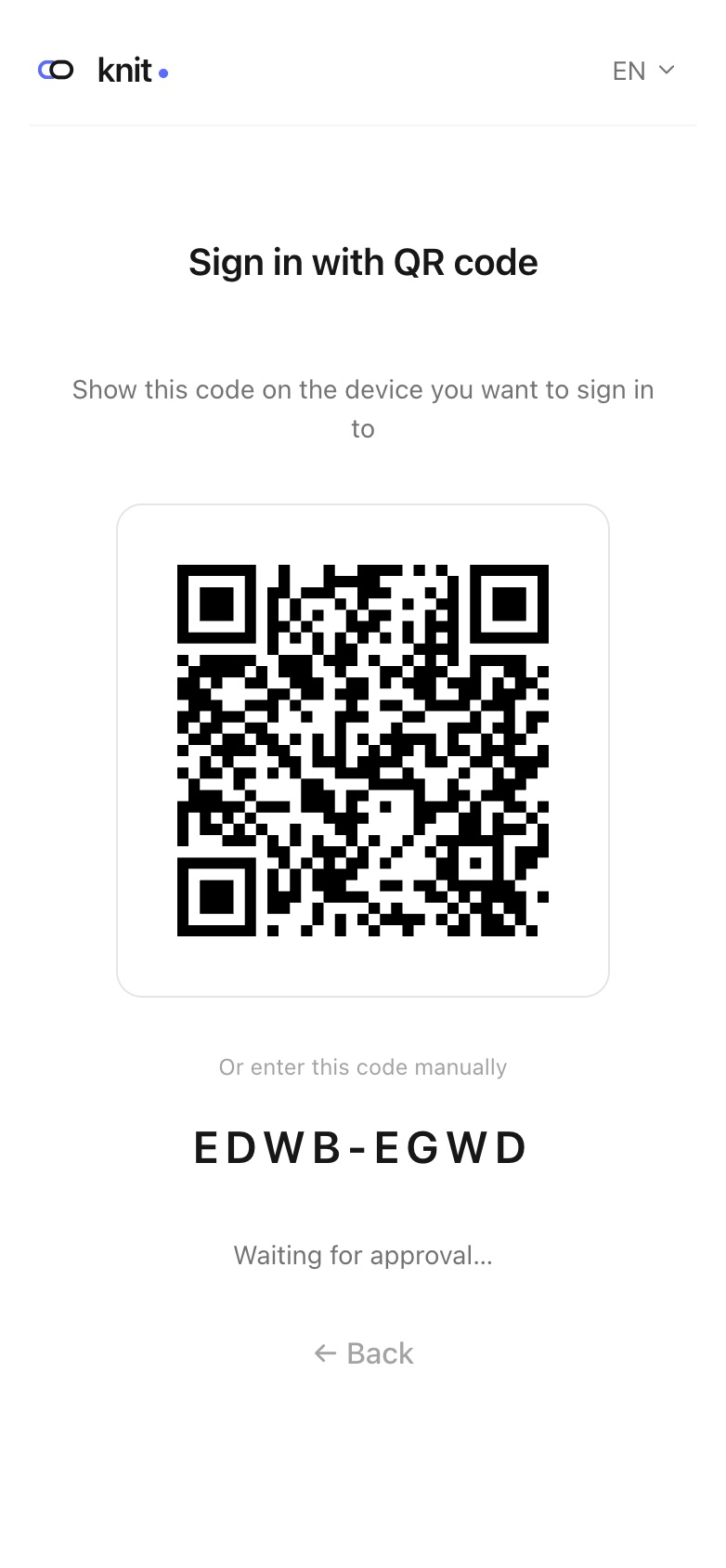
Then on your phone:
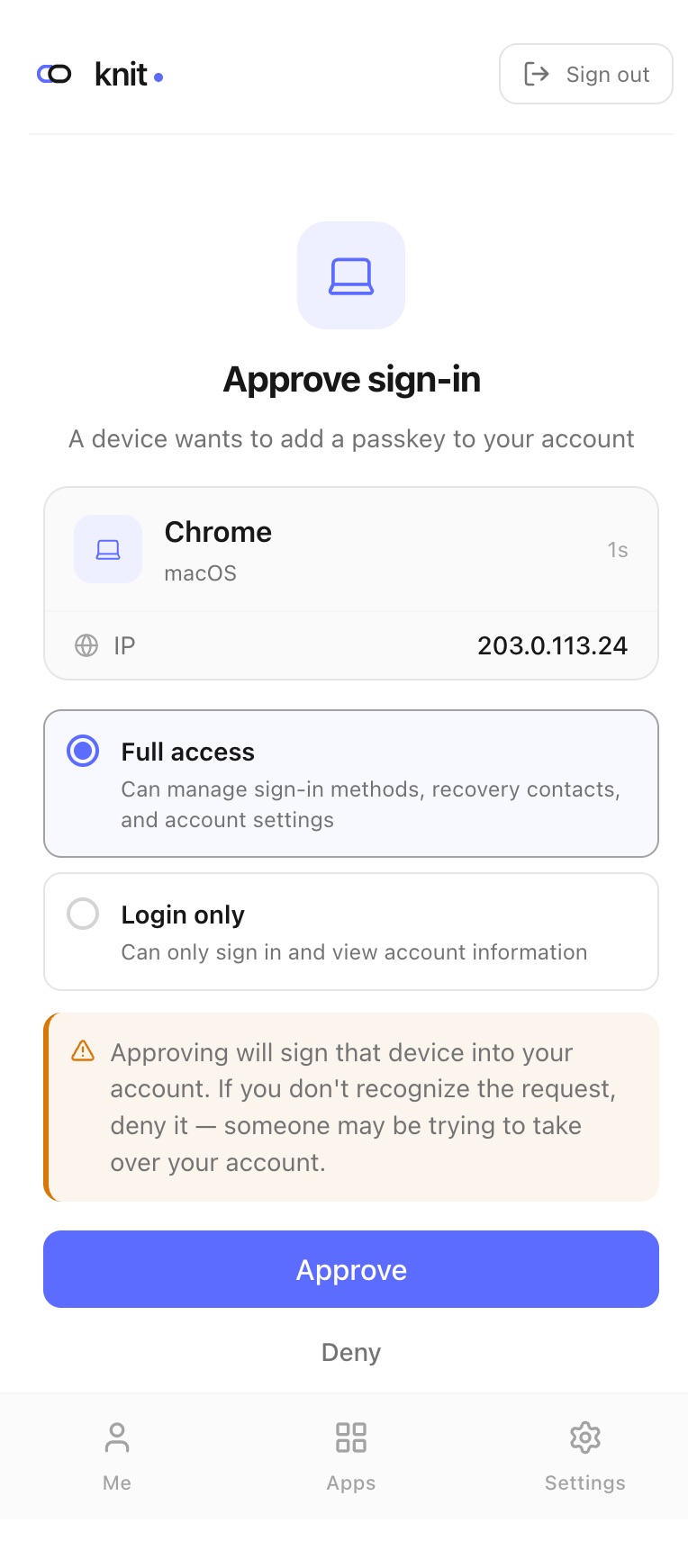
- Scan the QR code with your phone’s camera. It opens Knit’s Approve sign-in page. Or, in Knit, tap Scan to approve on the Me tab and scan the code there — or tap Enter code and type the 8-character code.
- Check the request: the browser, operating system, IP address, and how long ago it was made.
- Tap Approve if it’s your device, or Deny if it isn’t.
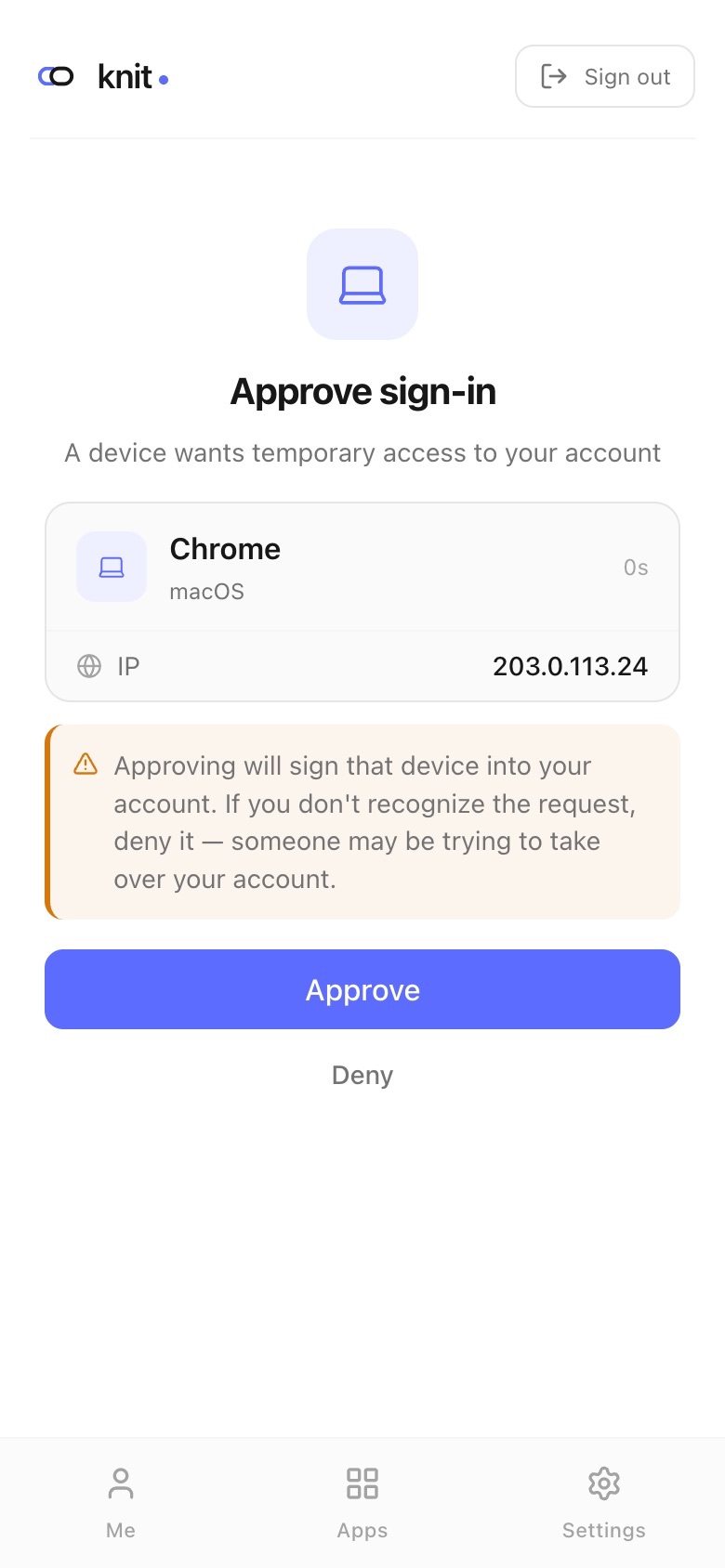
The other device signs in by itself within a few seconds.
Warning: Only approve requests you started yourself. Approving signs that device in to your account. If you don’t recognise a request, tap Deny — someone may be trying to get into your account.
What temporary access allows
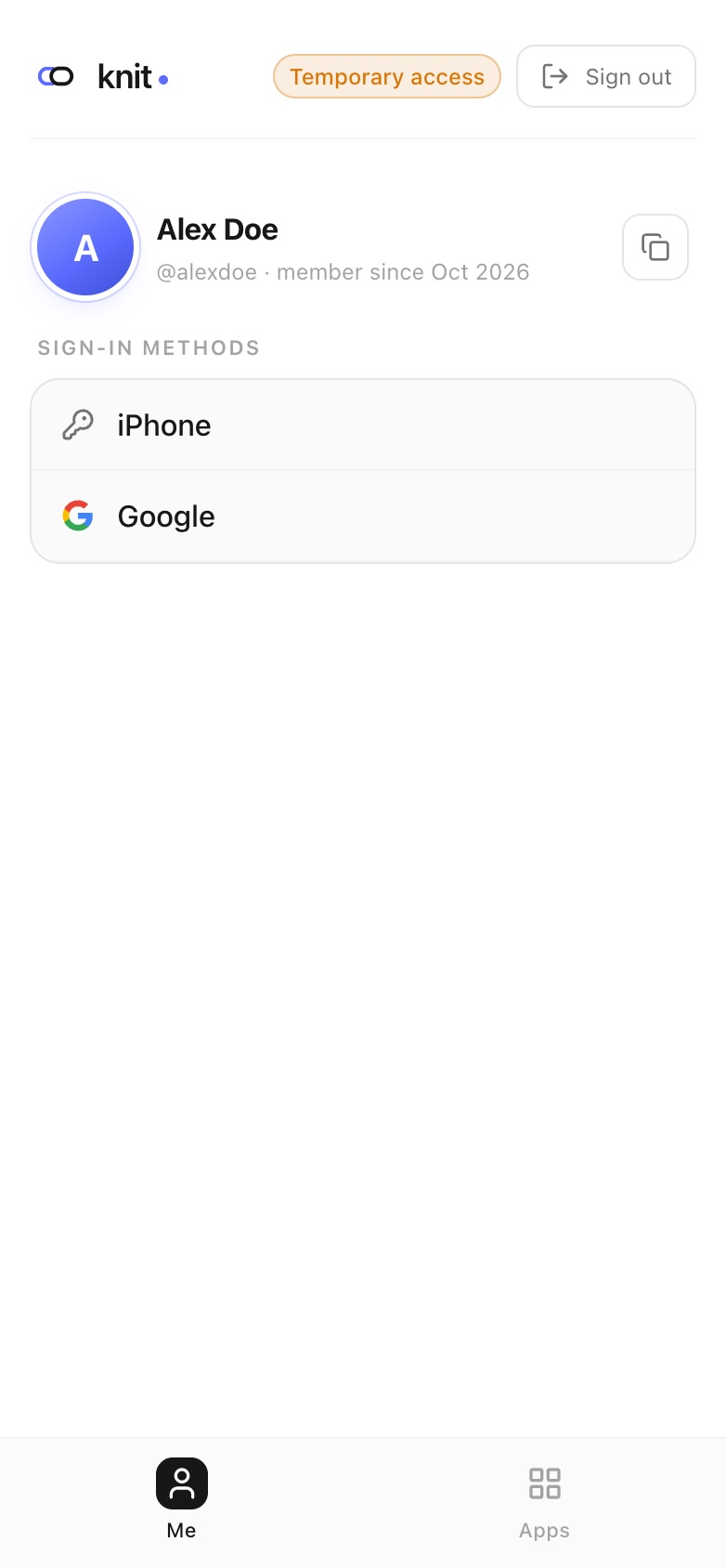
A device signed in by QR code shows a Temporary access badge at the top. On it you can see your account and open your apps, but you can’t change sign-in methods, edit your profile, or delete your account — the Settings tab isn’t shown. Tap Sign out when you’re done, especially on a shared computer.
Add a new device
To sign in on a new device with its own passkey from now on, add it to your account.
Before you begin: On the new device, sign in with a connected social account first — see Social Login. The + Add this device button appears only when you’re signed in without a passkey on that device.
On the new device:
- On the Me tab, tap Manage sign-in methods.
- Tap + Add this device. A code and a QR code appear.
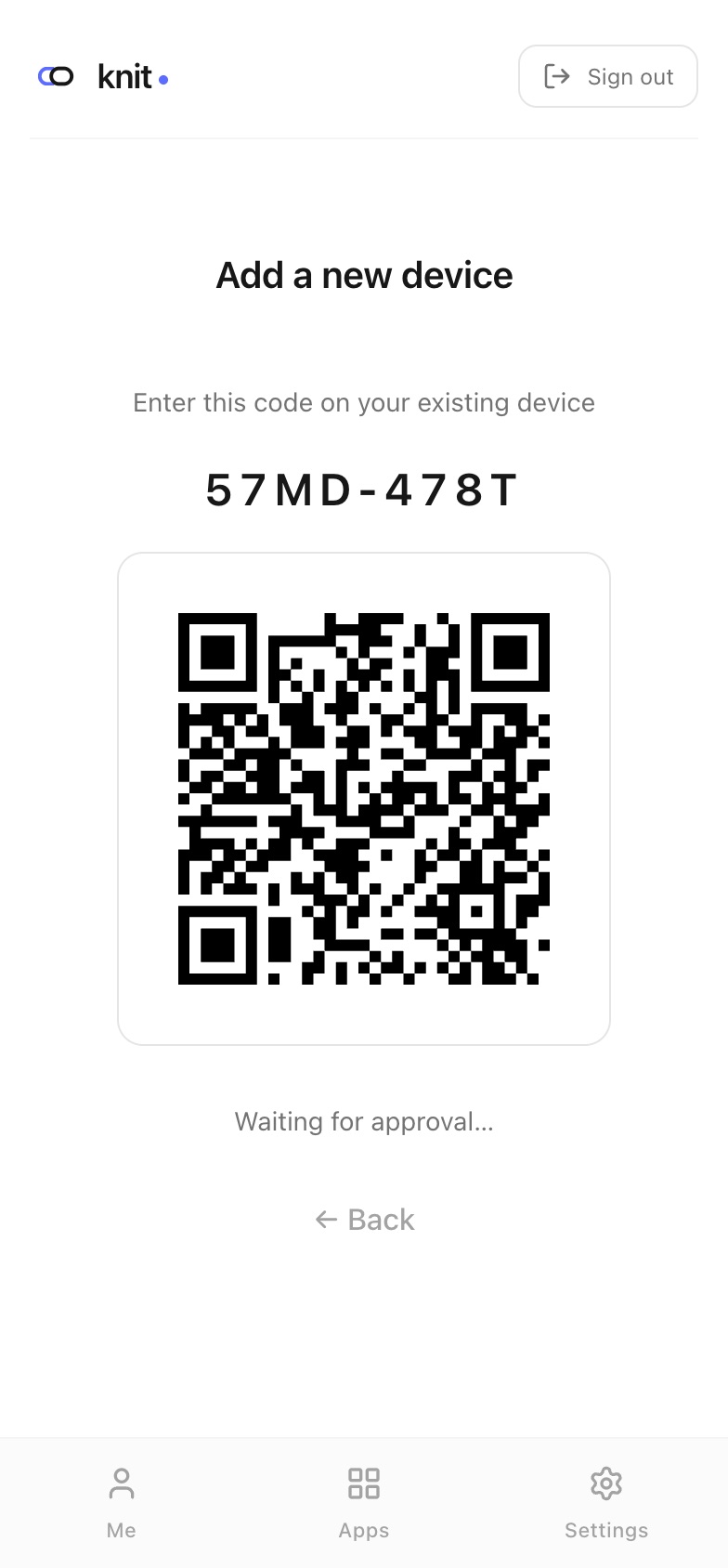
On your phone (or another device with your passkey):
- Scan the QR code, or tap Scan to approve → Enter code and type the code.
- Choose what the new device may do:
- Full access — can manage sign-in methods, recovery contacts, and account settings.
- Login only — can only sign in and view account information.
- Tap Approve.
Back on the new device:
- Tap Create passkey and confirm with your fingerprint, face, or PIN.
- Enter a Device name, such as “Work laptop”, and tap Continue.
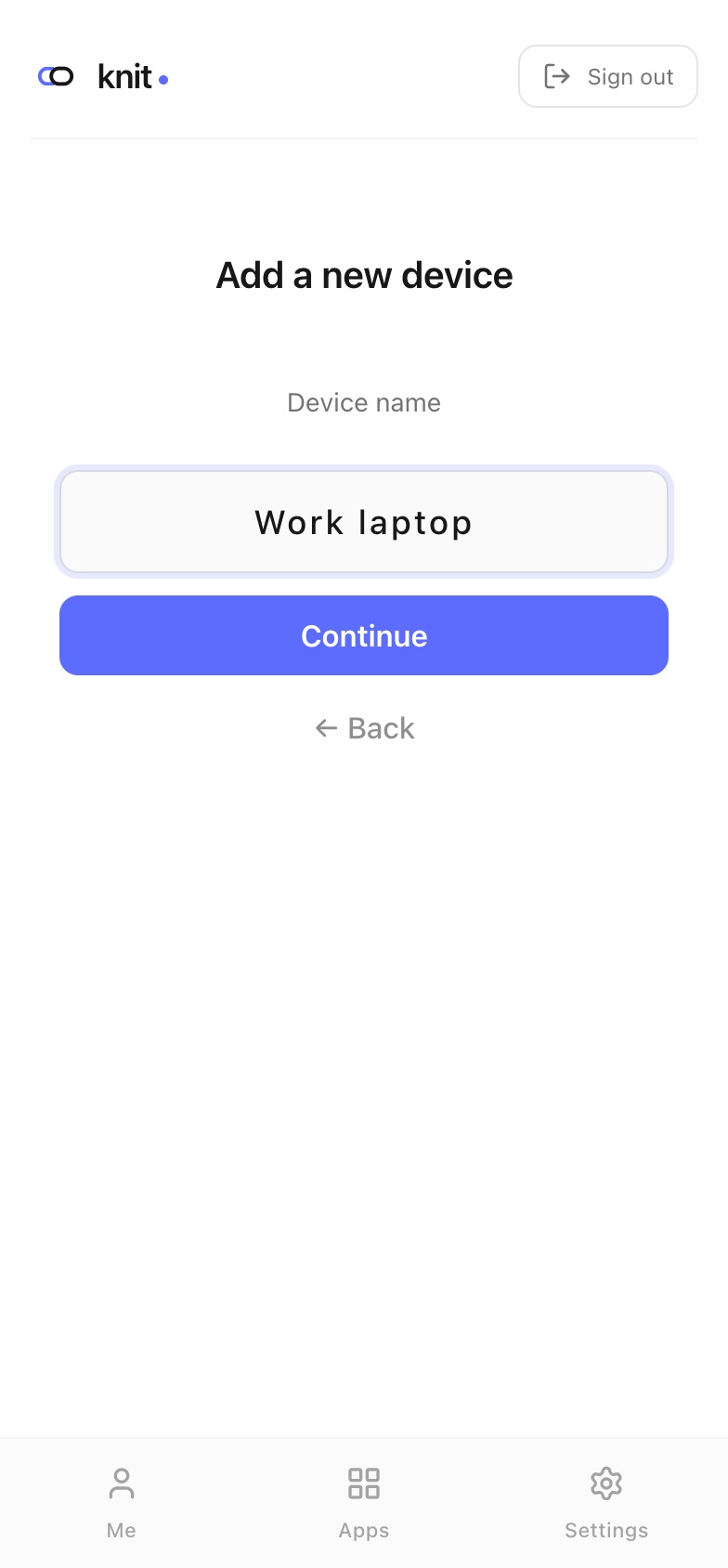
The new passkey now appears in Sign-in methods on all your devices.
Tips
- Choose Login only for a device other people might use. You can still manage your account from your phone.
- Codes stay valid for 10 minutes. If one expires, go back and start again to get a new code.
- Give each passkey a clear name so you can tell your devices apart later.
Related guides
- Passkeys — rename or remove passkeys.
- Social Login — needed to add a new device.
- Account Recovery — what to do if you lose a device.
Frequently asked questions
The approve page says “You must be signed in with a passkey to approve device logins”. You’re signed in on your phone with a social account or a QR code. Sign out, then sign in again with Sign in and your passkey.
I see “This code has expired or is invalid”. The code is older than 10 minutes, was already used, or was typed incorrectly. Start again on the other device to get a new code.
Can I use QR sign-in without a passkey anywhere? No. Approving always needs a device where you’re signed in with a passkey.
I don’t see “+ Add this device”. It appears only on a device where you signed in with a social account. If you signed in with a passkey, that device already has one. If you signed in with a QR code, sign out and sign in with a social account first.
Need more help?
If you run into something this guide doesn’t cover, reach out through the Contact page.