



Account Recovery
Set up a backup sign-in so losing a device doesn't lock you out of Knit.
Your passkey lives on your device. If that device is lost, stolen, or reset, you need another way in. The best time to set that up is now, while you can still sign in.
In this guide: Set up a backup, and get back into your account after losing a device.
Before you begin: Sign in to Knit with your passkey.
Check whether you have a backup
Open the Me tab. If you see No sign-in backup, your passkey is currently your only way in.
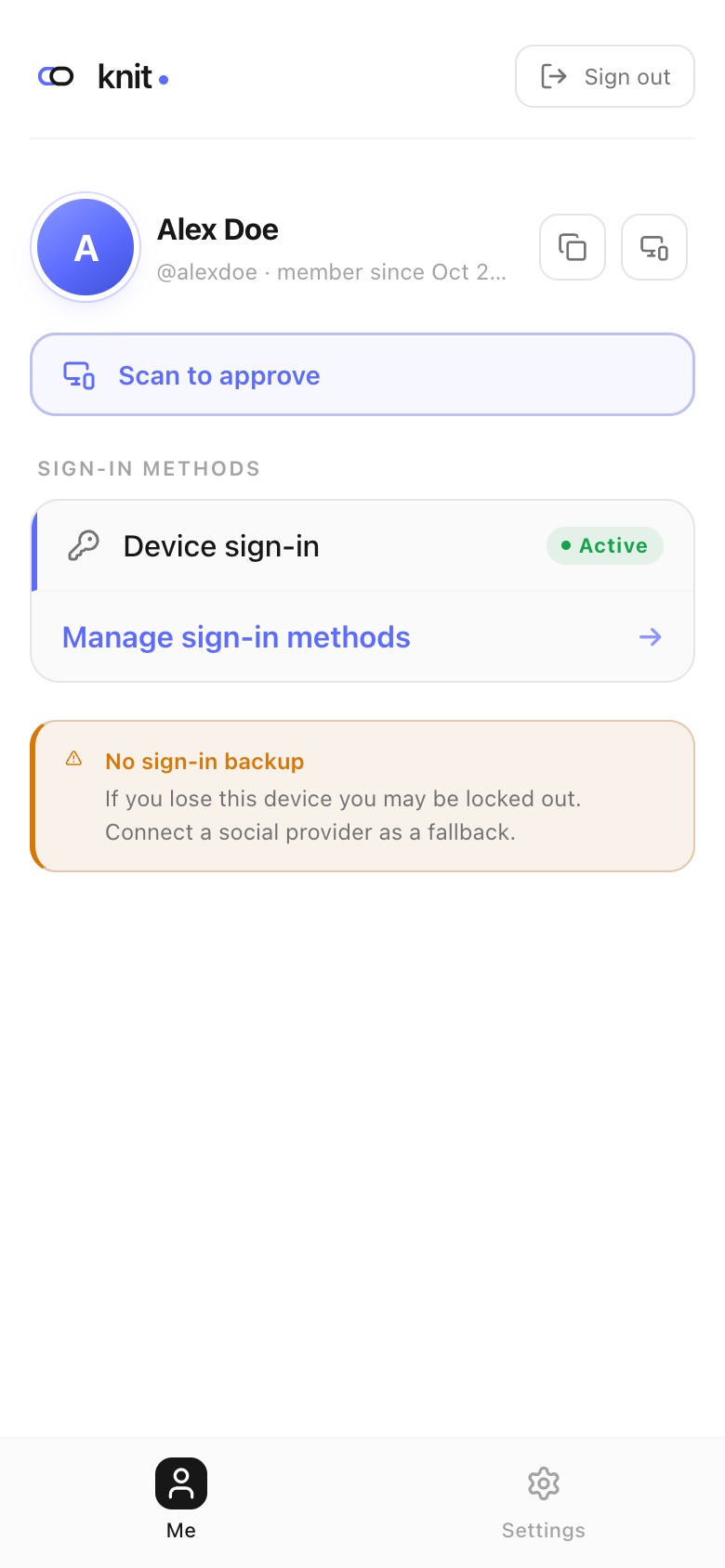
Set up a backup
Use one or more of these:
- Connect a social account. In Sign-in methods, tap Connect next to Google, Apple, or another service — see Social Login. You can then sign in on any device, even without your passkey. The warning disappears once one is connected.
- Add a passkey on a second device. For example, add your laptop as well as your phone — see Add a new device. If you lose one, the other still works.
- Let your passkey sync. If your device saves passkeys to a password manager such as iCloud Keychain or Google Password Manager, it may already be on your other devices signed in to the same account.
If you lose a device
You still have another device with a passkey
- Sign in on that device.
- Open Sign-in methods and Remove the passkey of the lost device, so it can no longer be used.
- When you get a replacement device, add it — see Add a new device.
You have a connected social account, but no other passkey
- On any device, open Knit and tap Continue with … for your connected service.
- You’re signed in and can manage your account as usual. Open Sign-in methods and Remove the lost device’s passkey.
Adding a new passkey needs approval from a device where you’re signed in with a passkey. Until you have one again, keep signing in with your social account.
You have no other passkey and no connected social account
You won’t be able to sign in to that account. Contact us through the Contact page.
Tips
- Set up at least one backup as soon as you create your account.
- Remove passkeys of devices you no longer have, so a lost device can’t be used to sign in.
- Give each passkey a clear name, so you know which one to remove.
Related guides
- Social Login — connect a backup sign-in.
- Passkeys — rename or remove passkeys.
- QR Sign-in & New Devices — add a passkey to another device.
Frequently asked questions
Can someone who finds my phone sign in to Knit? Not without unlocking it. Your passkey needs your fingerprint, face, or device PIN. To be safe, remove the lost device’s passkey as soon as you can.
I got a new phone. Is my passkey on it? Only if your old phone synced passkeys to a password manager you’ve also signed in to on the new phone. Otherwise, add the new phone from another device — see Add a new device.
Need more help?
If you run into something this guide doesn’t cover, reach out through the Contact page.