

Settings
Change your name and nickname, appearance, and language, or delete your Knit account.
Settings holds your profile and preferences. Open it from the bottom bar.
In this guide: Edit your profile, change how Knit looks, and delete your account.
Before you begin: Sign in with a passkey or a social account. Settings isn’t available on a device signed in with a QR code (Temporary access).
Profile
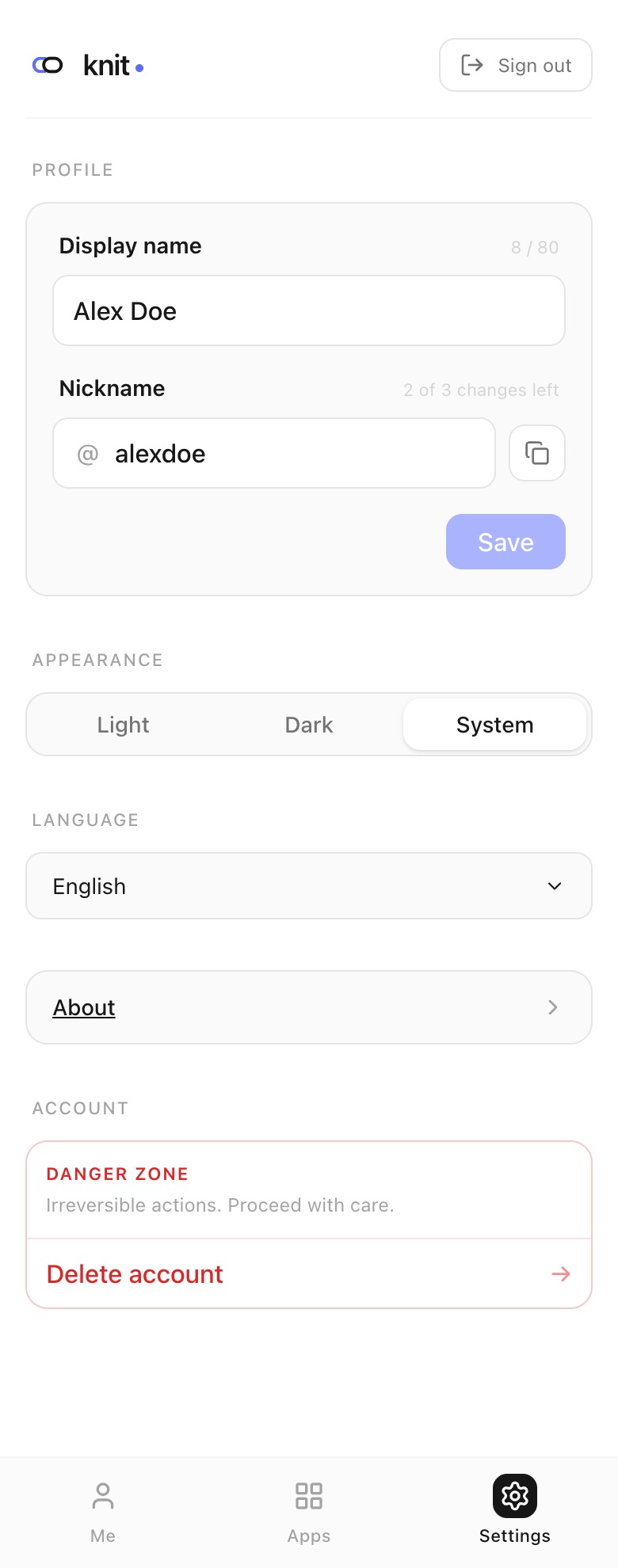
- Display name — your name as apps and other people see it, up to 80 characters.
- Nickname — your @handle. As you type, Knit checks whether it’s available and shows, for example, “@alex_doe is available”. If it’s taken, Knit suggests alternatives you can tap.
Change either field and tap Save.
You can change your nickname only a limited number of times — the counter next to the field shows how many changes you have left. Your previous nicknames are listed under Previous handles and still point to your account. The copy button next to the field copies your @handle so you can share it.
Appearance and language
- Appearance — choose Light, Dark, or System (follows your device setting).
- Language — choose the language Knit is shown in.
These apply straight away.
About
About shows the Knit version, the company that provides the service, and links to the Terms & Conditions, Privacy Policy, and Data Deletion pages.
Delete your account
Warning: Deleting your account is permanent and can’t be undone. Your account and all connected data are removed, and you can no longer use it to sign in to any app.
- In Settings, scroll to Account → Danger zone.
- Tap Delete account.
- Read the confirmation, then tap Delete permanently — or Cancel to keep your account.
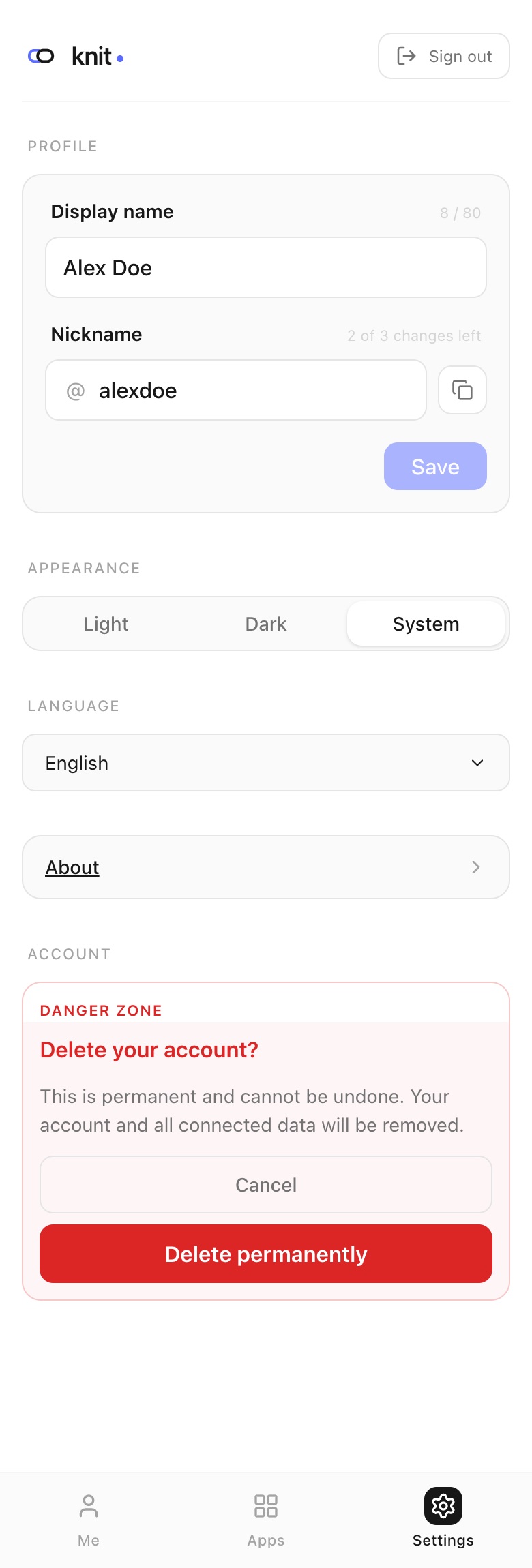
After deleting, you’re signed out. Passkeys saved on your devices for the old account no longer work.
Related guides
- Passkeys — manage your sign-in methods, which live under the Me tab.
- Apps — the apps that use your account.
Frequently asked questions
Where do I change my sign-in methods? On the Me tab, tap Manage sign-in methods. See Passkeys.
My nickname field is greyed out. You’ve used all your nickname changes, so the current one can’t be changed anymore.
Why is Settings missing? You’re signed in with a QR code. Sign in with your passkey or a social account to see Settings.
Need more help?
If you run into something this guide doesn’t cover, reach out through the Contact page.