



Social Login
Sign in to Knit with Google, Apple, Microsoft, and other accounts you already have.
Social login lets you sign in to Knit with an account you already have, such as Google or Apple. It’s also the easiest backup: if you lose the device with your passkey, you can still get in.
In this guide: Sign in with a social account, connect one to your Knit account, and remove it.
Before you begin: You need an account with one of the services shown on the Knit sign-in page.
Supported services
Depending on the service you’re signing in to, the sign-in page shows buttons such as Continue with Google, Continue with Apple, Continue with Microsoft, Continue with Facebook, Continue with Telegram, and Continue with X.
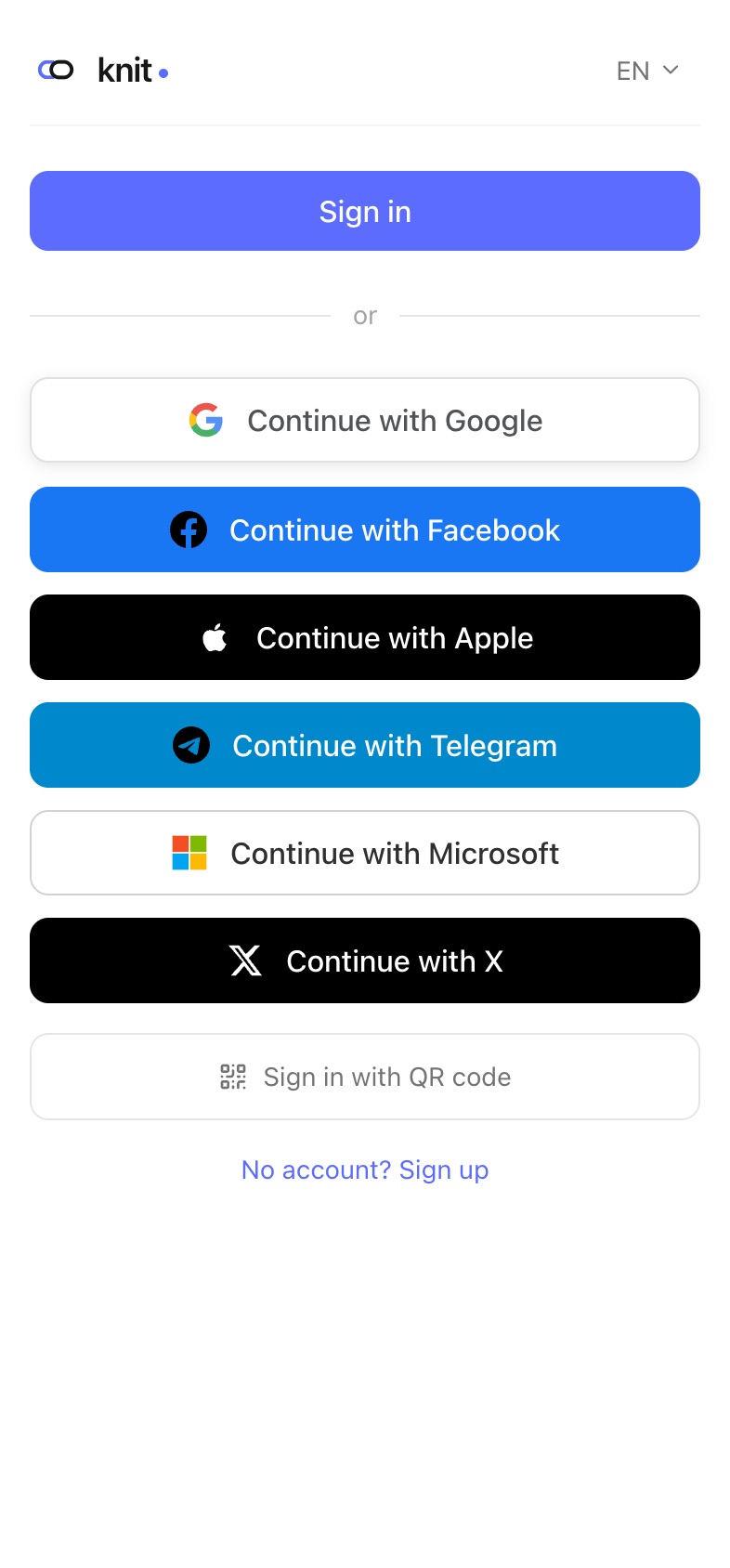
Sign in with a social account
- On the sign-in page, tap the Continue with … button for your service.
- Sign in on that service’s page and approve the request.
- You’re returned to Knit, signed in.
This works once the social account is connected to your Knit account.
First time with a social account
If the social account isn’t connected to any Knit account yet, Knit asks how to continue. You’ll see a message such as “Google verified. Create a passkey to finish and connect it to your account.”
- New to Knit? Fill in Your name, optionally a Nickname, accept the terms, and tap Create account. Your device creates a passkey, and the social account is connected to your new account.
- Already have a Knit account? Tap Already have an account? Sign in and confirm with your passkey. The social account is connected to your existing account.
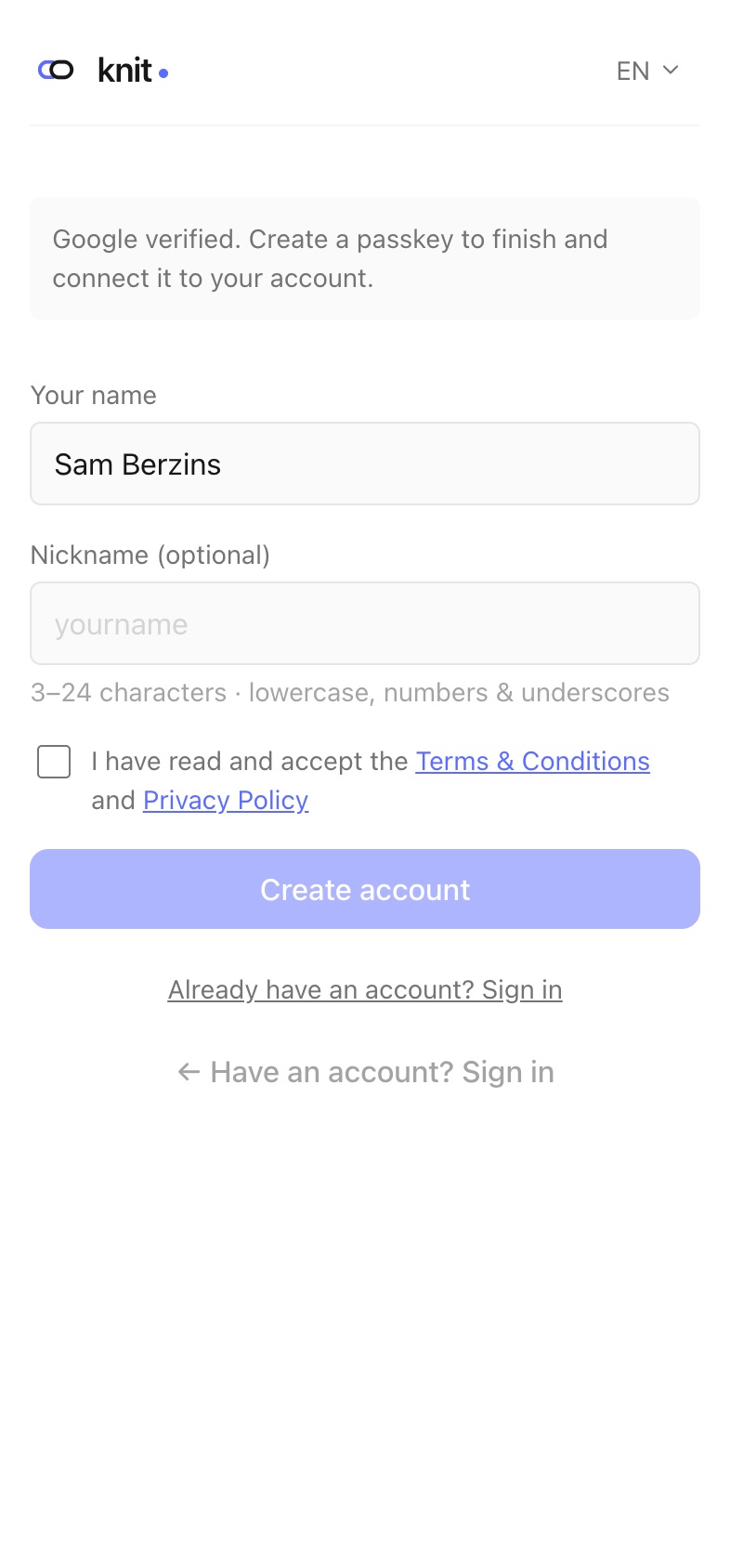
Either way, you only have to do this once. Next time, the Continue with … button signs you straight in.
Connect a social account
You can connect a social account to your existing Knit account at any time.
- On the Me tab, tap Manage sign-in methods.
- Under your passkeys you’ll see the supported services. Tap Connect next to the one you want.
- Sign in on that service’s page and approve the request.
- You’re returned to Sign-in methods, and the service shows Connected.
Once a social account is connected, the No sign-in backup warning disappears from your account page.
Remove a social account
- Open Sign-in methods.
- Next to the connected service, tap Remove, then tap Remove again to confirm.
You must keep at least one sign-in method, so you can’t remove your last one.
What a social sign-in can’t do
When you sign in with a social account, you can manage your account as usual, but you can’t approve sign-ins for other devices. Approving needs a passkey — see QR Sign-in & New Devices.
Related guides
- Passkeys — your main way to sign in.
- Account Recovery — why a connected social account is a good backup.
Frequently asked questions
I see “This account is already connected to a different user”. What now? That social account is already connected to another Knit account. Sign in to that account instead, or use a different social account.
I see “This provider is already connected to your account”. Your account already has an account from that service connected. Each service can be connected once.
I see “New account sign-up is paused for now”. Creating new Knit accounts is temporarily paused. Existing accounts work as usual — try again later.
Does Knit get my social account password? No. You sign in on the service’s own page, and it only tells Knit who you are.
Need more help?
If you run into something this guide doesn’t cover, reach out through the Contact page.